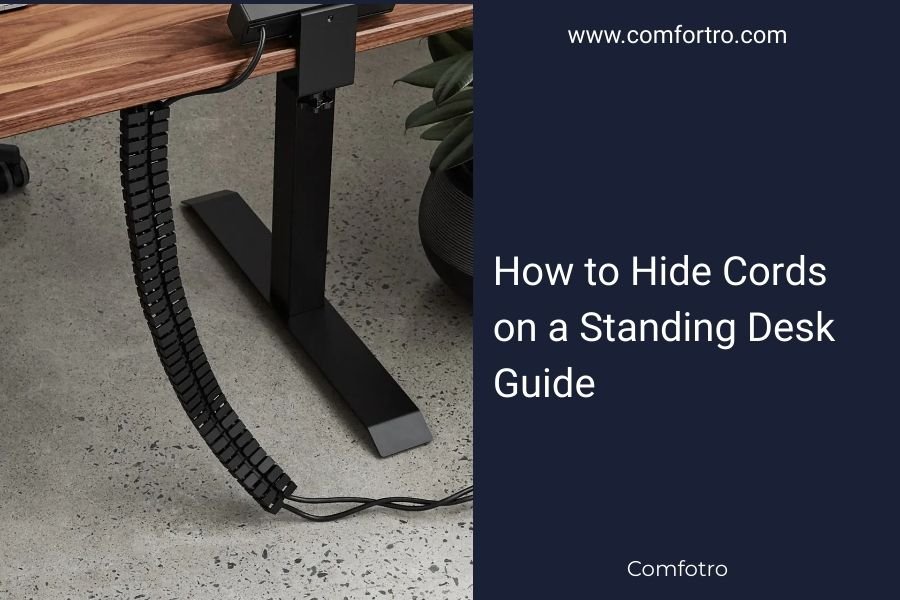
To hide cords on a standing desk, use cable management trays, adhesive cord clips, and cable channels that route wires underneath or behind your desk surface.
The best approach combines under-desk trays with desk edge clips and spiral cable wrap to keep all wires organized and out of sight.
Why Cable Management Matters for Standing Desks
Standing desks create unique challenges for cord management. When your desk moves up and down, loose cables can get tangled, pulled, or damaged.
I found through research that poor cable management is one of the top complaints about standing desks. Messy cords don’t just look bad – they can also be dangerous.
Clean cable management makes your workspace look professional. It also protects your equipment from damage when the desk adjusts.
Quick Solutions That Work Right Away
Adhesive Cable Clips
Stick these small clips along your desk edge. They hold individual cords in place and cost under $10.
Place them every 6-8 inches for best results. Choose clips that match your desk color.
Velcro Cable Ties
Bundle loose cords together with reusable velcro straps. They’re adjustable and won’t damage your cables like zip ties can.
I found that velcro ties work better than plastic ones because you can easily add or remove cords later.
Spiral Cable Wrap
This flexible tube wraps around multiple cords to create one neat bundle. It stretches to accommodate different cable sizes.
Start wrapping from the bottom and work your way up. Leave some extra length for when your desk moves.
Under-Desk Cable Management Systems
Cable Management Trays
These mesh or solid trays mount under your desk and hold power strips plus extra cord length. They move with your desk as it adjusts.
Look for trays that clamp onto your desk frame. They should support at least 15-20 pounds of equipment weight.
Installation Tips for Cable Trays
Mount the tray toward the back of your desk. This keeps it hidden but still accessible.
Make sure there’s enough clearance when your desk is at its lowest position. You don’t want the tray hitting the floor or your legs.
J-Channel Cable Raceway
This plastic channel sticks to the underside of your desk and holds multiple cords. It creates a clean path from your equipment to the floor.
Cut the channel to fit your desk width. Most channels can hold 8-12 standard cables.
Best Placement for Cable Channels
Run the channel along the back edge of your desk. This keeps cords away from your legs and chair.
If you have a desk with a modesty panel, mount the channel behind it for extra hiding power.
Desk Edge Solutions
Edge-Mounted Cable Spines
These curved guides attach to your desk edge and direct cords downward. They look clean and professional.
Choose spines that match your desk finish. Black and white are the most common colors.
Desk Grommet Holes
If your desk has built-in grommets, use them. Thread cords through the holes to keep them contained.
Add rubber grommet inserts to protect cables from sharp edges. They also make the holes look finished.
Creating Your Own Grommet Holes
You can drill holes if your desk doesn’t have them. Use a 2-inch hole saw for most setups.
Always check what’s under your desk before drilling. You don’t want to hit the adjustment mechanism.
Power Strip Placement Strategies
Mount Power Strips Under the Desk
Keep your power strip off the floor by mounting it under your desk. This prevents dust buildup and makes cleaning easier.
Use mounting brackets or strong double-sided tape. Make sure the power button stays accessible.
Use a Cable Management Tray with Built-in Power
Some cable trays come with integrated power strips. This combines two solutions into one clean setup.
These cost more upfront but save time and look neater than separate components.
Dealing with Different Cable Types
Power Cords
These are usually thicker and stiffer. Give them their own path to avoid kinking.
Coil extra length loosely in your cable tray. Tight coils can damage power cords over time.
Data Cables
USB, ethernet, and monitor cables are more flexible. You can bundle these together safely.
Keep data cables separate from power cords when possible. This reduces interference.
Monitor Cable Management
Monitor cables often need the most length for desk adjustment. Plan for extra slack.
Use a monitor arm with built-in cable management if you have one. This moves the cables with your screen.
Advanced Organization Techniques
Label Your Cables
Use small labels near each plug. This makes troubleshooting much easier later.
Wrap labels around the cable, not just stick them on. They stay put better that way.
Create Separate Zones
Divide your cables into groups: power, data, and accessories. Route each group through its own path.
This prevents tangling and makes changes simpler.
| Cable Type | Best Management Method | Cost Range |
|---|---|---|
| Power cords | Under-desk tray | $20-50 |
| Data cables | Desk edge clips | $5-15 |
| Monitor cables | Cable spine + wrap | $10-25 |
Common Mistakes to Avoid
Not Planning for Desk Movement
Many people forget that standing desks move. Your cable management needs to account for this motion.
Always test your desk at both heights after installing cable management. Make sure nothing gets pinched or pulled tight.
Using Cables That Are Too Short
Short cables create tension when your desk adjusts. This can damage both cables and equipment.
Buy cables that are 20% longer than you think you need. The extra length prevents problems.
Zip Ties vs. Velcro Straps
Avoid permanent zip ties for cable bundling. You’ll need to cut them every time you make changes.
Velcro straps cost a bit more but save time and frustration in the long run.
Budget-Friendly Options
DIY Cable Management
You can make simple cable guides from toilet paper tubes or PVC pipe sections.
Binder clips also work as temporary cable holders. Clip them to your desk edge and thread cables through the metal handles.
Repurpose Household Items
Small boxes can become cable organizers. Cut holes in the sides for cords to pass through.
Velcro strips from craft stores work just like expensive cable ties but cost much less.
Maintenance and Adjustments
Regular Cable Checks
Look at your cable management monthly. Cords can work loose over time with desk movement.
Tighten any loose clips or brackets. Replace worn velcro straps before they fail.
Adding New Equipment
Plan your cable paths to make additions easy. Leave extra space in trays and channels.
When you add new devices, don’t just throw the cord wherever it fits. Integrate it into your existing system.
Conclusion
Hiding cords on your standing desk doesn’t have to be complicated or expensive. Start with simple solutions like adhesive clips and cable ties, then add under-desk trays as needed. The key is planning for your desk’s movement and leaving enough slack in all cables. With the right combination of tools and techniques, you can create a clean, professional workspace that stays organized no matter how often you adjust your desk height. Remember to check your setup regularly and make adjustments as you add new equipment.
What’s the cheapest way to hide standing desk cords?
Adhesive cable clips and velcro ties are the most affordable options, costing under $15 total. You can also repurpose binder clips and toilet paper tubes for DIY solutions that cost almost nothing.
How much extra cable length do I need for a standing desk?
Add at least 12-18 inches beyond what you’d need for a fixed desk. This accounts for the full range of motion plus some safety margin to prevent tension on the cables.
Can cable management damage my standing desk?
Properly installed cable management won’t damage your desk. Avoid drilling holes unless necessary, and use clamp-on solutions when possible. Strong adhesives can sometimes leave residue when removed.
Should I turn off my desk when organizing cables?
Yes, always unplug your standing desk before installing cable management systems. This prevents accidental activation while you’re working underneath the desk surface.
How do I manage cables for a dual monitor setup on a standing desk?
Use a wider cable tray and separate your monitor cables from other cords. Consider a dual monitor arm with integrated cable management to move the cables with your screens as the desk adjusts.