
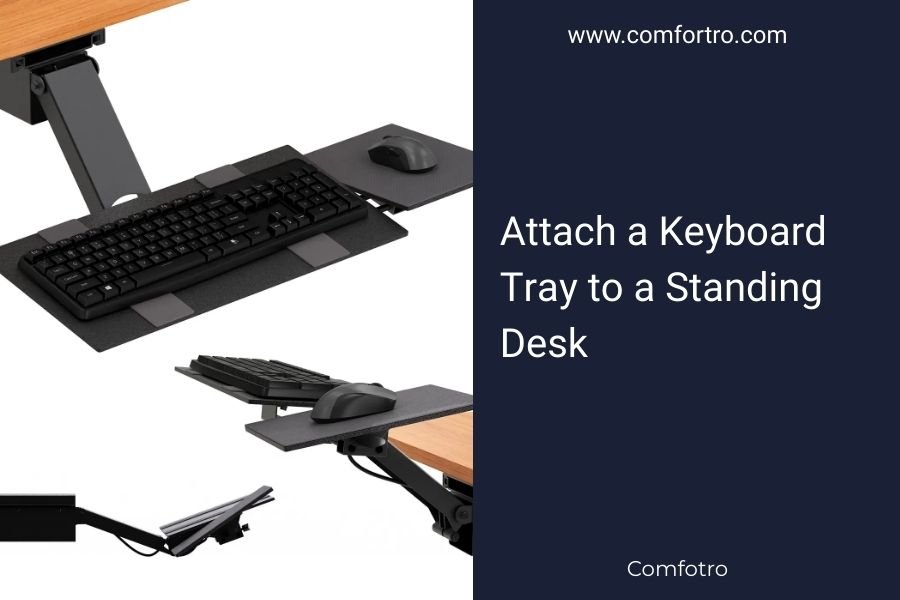
You can attach a keyboard tray to a standing desk using clamp-on brackets, drill-mount systems, or adjustable keyboard arms that fit your desk’s edge or surface.
The best method depends on your standing desk type, but most people find clamp-on trays work well without permanent changes to their desk.
Why Add a Keyboard Tray to Your Standing Desk
Your wrists deserve better than awkward angles all day. When you type directly on your standing desk surface, your hands often sit too high. This creates tension in your shoulders and strain in your wrists.
A keyboard tray lets you position your keyboard at the right height. Your elbows should bend at 90 degrees when you type. Research shows this reduces repetitive strain injuries (American Physical Therapy Association).
Health Benefits You’ll Notice
Better wrist position means less pain at the end of your workday. Your shoulders relax when your arms aren’t reaching up to type.
Many office workers report less neck tension too. When your keyboard sits lower, you don’t crane your neck forward as much.
Types of Keyboard Trays for Standing Desks
Not all keyboard trays work the same way. Let me walk you through the main options I found during my research.
Clamp-On Keyboard Trays
These attach to your desk edge without screws or drilling. They grip the desk with adjustable clamps.
The big advantage? You can remove them anytime. Perfect if you rent your office or like to rearrange furniture.
Best for Thick Desk Edges
Most clamp-on trays work with desk edges between 0.75 and 2 inches thick. Check your desk measurement first.
Under-Desk Mount Systems
These bolt directly to the bottom of your desk. They offer the strongest support and smoothest sliding action.
You’ll need to drill pilot holes. But the trade-off is rock-solid stability, even when you type fast.
Weight Capacity Matters
Under-desk mounts typically hold more weight. Look for ones rated for at least 15 pounds if you use a heavy mechanical keyboard.
Adjustable Keyboard Arms
These swing out from the side of your desk. They adjust up, down, left, and right.
Great for shared workspaces. You can swing the tray away when someone else uses the desk.
Step-by-Step Installation Guide
Let’s start with the easiest method first. You can always upgrade later if needed.
Installing a Clamp-On Tray
Gather these tools: measuring tape, level, and the tray hardware.
Step 1: Measure Your Desk
Measure your desk edge thickness. Most standing desks range from 1 to 1.5 inches thick.
Check for obstructions under the desk too. Drawers or support bars might get in the way.
Step 2: Position the Clamps
Center the tray where you normally stand to work. Your dominant hand should reach the mouse area comfortably.
Tighten the clamps gradually. Don’t overtighten or you might damage the desk surface.
Step 3: Test the Height
Stand in your normal position. Your elbows should bend at 90 degrees when you rest your hands on the keyboard.
Most trays adjust up and down about 6 inches. Find your sweet spot and lock it in.
Installing an Under-Desk Mount
This method gives you more stability but requires drilling.
Step 1: Mark Your Holes
Hold the mounting bracket under your desk. Mark screw holes with a pencil.
Double-check the position. Measure twice, drill once, as they say.
Step 2: Drill Pilot Holes
Use a drill bit slightly smaller than your screws. This prevents the wood from splitting.
Drill straight up into the desk bottom. Go slow to avoid breaking through the top surface.
Step 3: Attach the Slides
Screw the mounting brackets to your desk first. Then attach the keyboard platform to the slides.
Test the sliding motion before you finish. It should glide smoothly in and out.
Choosing the Right Size and Features
Size matters more than you might think. A too-small tray cramps your typing. Too large takes up unnecessary space.
Standard Keyboard Tray Dimensions
| Tray Type | Width | Depth | Best For |
|---|---|---|---|
| Compact | 20-22 inches | 8-10 inches | Laptop keyboards |
| Standard | 24-26 inches | 10-12 inches | Full-size keyboards |
| Extended | 28-30 inches | 12-14 inches | Keyboard plus large mouse pad |
Must-Have Features
Look for height adjustment first. Your needs change throughout the day.
Tilt adjustment helps too. A slight downward angle often feels more natural for your wrists.
Mouse Platform
Get a tray with a built-in mouse area. Separate mouse pads tend to slide around.
Common Installation Problems and Solutions
Every desk is different. Here are the issues I hear about most often.
Desk Edge Too Thick or Thin
Some standing desks have unusual edge profiles. Measure carefully before you buy.
If your desk edge is too thick, look for heavy-duty clamps. Too thin? Consider a desk pad to add thickness.
Tray Hits Your Legs
This happens when the tray sits too low or extends too far. Adjust the height first.
If that doesn’t work, try a tray with a shorter depth. You might sacrifice some mouse space, but you’ll gain comfort.
Wobbly or Unstable Feel
Check all the mounting screws or clamps. Loose hardware causes most stability issues.
Some lightweight desks wobble when you type. Consider switching to an under-desk mount for better stability.
Maintaining Your Keyboard Tray
A little care keeps your tray working smoothly for years.
Clean the Slides Monthly
Dust and crumbs build up in the sliding tracks. Wipe them clean with a damp cloth.
Add a tiny bit of white lithium grease if the sliding gets rough. Don’t use WD-40 – it attracts more dirt.
Check the Mounting Points
Screws can loosen over time from daily use. Tighten them every few months.
Look for wear marks on clamp-on trays. Replace the protective pads if they start to damage your desk.
Conclusion
Adding a keyboard tray to your standing desk improves your comfort and reduces strain. Clamp-on trays offer the easiest installation, while under-desk mounts provide better stability. Measure your desk edge thickness first, then choose a tray with height and tilt adjustment. Your wrists will thank you for the better positioning, and you’ll type more comfortably throughout your workday.
Can I use any keyboard tray with a standing desk?
Not all keyboard trays work with standing desks. You need one that adjusts high enough for standing use, typically 35-45 inches from the floor. Regular desk trays usually don’t reach those heights.
Will a keyboard tray damage my standing desk?
Clamp-on trays won’t damage your desk if installed properly. Use the protective pads that come with most trays. Under-desk mounts require drilling holes, which creates permanent changes to your desk.
How much weight can a keyboard tray hold?
Most keyboard trays support 10-20 pounds safely. This handles any standard keyboard and mouse combination. Heavy mechanical keyboards or large mouse pads might need a heavy-duty tray rated for 25+ pounds.
What’s the ideal keyboard tray height for standing?
Your keyboard should sit about 2-4 inches below your elbow height when standing. For most people, this means the tray surface sits 38-42 inches from the floor. Adjust based on your comfort and arm position.
Do I need a separate mouse tray?
A built-in mouse area works better than separate trays. It keeps your mouse and keyboard at the same height and prevents the mouse pad from sliding around during use. Look for trays with at least 8 inches of mouse space.
