How to Use Laptop Clamshell Mode Correctly
On this page (12 sections)
- What Is Laptop Clamshell Mode
- Essential Equipment You Need
- Setting Up Clamshell Mode on Windows
- Setting Up Clamshell Mode on Mac
- Optimizing Your Clamshell Setup
- Troubleshooting Common Issues
- Performance Considerations
- Best Practices for Daily Use
- Ergonomic Benefits
- When Clamshell Mode Isn’t Right
- Security Considerations
- Conclusion
Laptop clamshell mode lets you use your laptop as a desktop computer by connecting external monitors while keeping the laptop lid closed. This setup transforms your portable device into a powerful workstation with better ergonomics and screen real estate.
To use laptop clamshell mode correctly, you need an external monitor, keyboard, mouse, and power adapter connected to your closed laptop. A standing desk setup can also support this arrangement when you want to work upright. Your laptop stays running while the lid remains shut, sending all display output to your external screen.
What Is Laptop Clamshell Mode
Think of clamshell mode like turning your laptop into a tiny desktop tower. Your laptop sits closed on your desk while doing all the heavy lifting behind the scenes.
The name comes from how your laptop looks when closed – like a clamshell. But don’t let the simple name fool you. This mode can completely change how you work from home.
I found that most modern laptops from the last five years support this feature. Windows, Mac, and even some Linux systems handle it well.
Essential Equipment You Need
External Monitor
You need at least one external monitor. Any size works, but I found online that 24-27 inches gives you the best balance of screen space and desk real estate.
Connect it through HDMI, USB-C, DisplayPort, or whatever ports your laptop offers. Don’t worry about getting fancy – even a basic monitor beats squinting at a small laptop screen all day.
Keyboard and Mouse
Your laptop keyboard stays trapped under that closed lid. Grab any USB or wireless keyboard and mouse combo.
Wireless versions keep your desk cleaner. Wired options never need charging. Pick what fits your style and budget.
Power Adapter
Keep your laptop plugged in during clamshell mode. Running everything through external devices while closed generates more heat and uses more power.
Some laptops won’t even stay awake in clamshell mode without the power adapter connected. Better safe than sorry.
Setting Up Clamshell Mode on Windows
Configure Power Settings First
Windows tries to sleep your laptop when you close the lid. You need to change this behavior before anything else works.
Open Control Panel and search for “lid.” Click “Choose what closing the lid does.” Set both options to “Do nothing.”
Alternative Method Through Settings
You can also reach these settings through Windows Settings. Go to System, then Power & Sleep, then Additional Power Settings on the right side.
Connect Your External Monitor
Plug in your monitor while your laptop is still open. Windows should detect it automatically and extend your desktop.
Right-click your desktop and choose Display Settings. Make sure Windows recognizes both screens before closing the lid.
Set Your Primary Display
Scroll down in Display Settings and check “Make this my main display” on your external monitor. This ensures everything opens on the big screen, not the closed laptop.
Test Before Closing
Connect your external keyboard and mouse. Try opening a few programs to make sure everything appears on the external monitor.
Only close the laptop lid after you confirm everything works. If something goes wrong, you can always open the lid again.
Setting Up Clamshell Mode on Mac
Automatic Clamshell Detection
Macs handle clamshell mode more smoothly than Windows. Connect your external monitor, keyboard, mouse, and power adapter first.
Close the lid, then press any key on your external keyboard or click your external mouse. Your Mac wakes up and sends everything to the external display.
Requirements for Mac Clamshell Mode
Your Mac needs power, an external display, and an external input device connected. Missing any of these three pieces breaks the setup.
Managing Multiple Displays
Open System Preferences and click Displays while your external monitor is connected. You can adjust resolution and arrangement here.
Drag the white menu bar to your external display if you want it to be your primary screen. This makes the external monitor your main workspace.
Optimizing Your Clamshell Setup
Laptop Positioning Matters
Don’t just shove your closed laptop into a corner. It still needs airflow to stay cool.
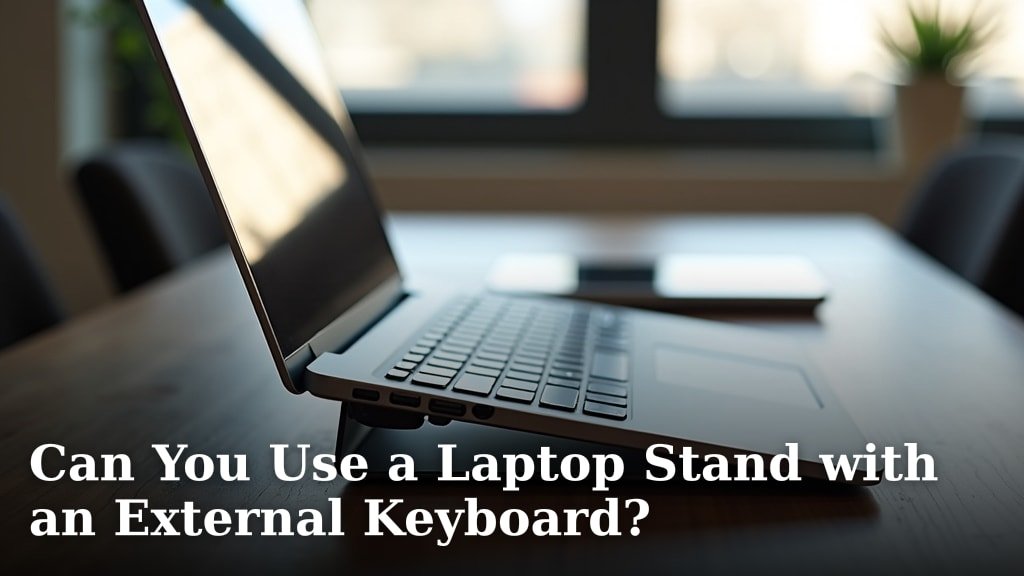
I came across research showing that vertical laptop stands work better than laying laptops flat. The vertical position improves airflow and saves desk space.
Heat Management Tips
Keep air vents clear on all sides. Avoid placing your laptop on soft surfaces or inside enclosed spaces.
Consider a laptop cooling pad if your device runs hot during normal use. Clamshell mode can increase temperatures since the lid traps some heat.
Cable Management Solutions
Clamshell setups create cable chaos fast. You have power, monitor, keyboard, mouse, and maybe ethernet or USB devices to connect.
Use a USB hub to reduce the number of cables going directly to your laptop. This also makes it easier to disconnect everything when you need to take your laptop somewhere.
Docking Station Benefits
A docking station turns your clamshell setup into a one-cable solution. Connect everything to the dock, then connect your laptop to the dock with a single USB-C or Thunderbolt cable.
Troubleshooting Common Issues
Laptop Goes to Sleep When Closed
This happens when power settings aren’t configured correctly. Double-check that “closing the lid” is set to “do nothing” in your power options.
Some laptops also have BIOS settings that control lid behavior. Check your laptop manual if standard power settings don’t work.
External Monitor Not Detected
Try a different cable first. Display cables fail more often than people think.
If cables aren’t the problem, update your graphics drivers. Windows Update handles this automatically, but you might need newer drivers from your laptop manufacturer’s website.
Resolution and Scaling Problems
Mismatched resolutions between your laptop and external monitor can cause display issues. Set both to their native resolution for the best results.
Adjust display scaling if text appears too small or too large. Windows and Mac both have scaling options in their display settings.
Overheating in Clamshell Mode
Monitor your laptop temperature using built-in tools or third-party apps. If temperatures consistently exceed 80°C (176°F), you need better cooling.
Clean dust from air vents and consider undervolting your CPU if you’re comfortable with advanced settings. Many experts say that regular cleaning prevents most overheating issues.
Performance Considerations
Impact on Battery Life
Clamshell mode with external devices drains batteries faster than normal laptop use. The power adapter becomes essential, not optional.
If you frequently switch between clamshell and portable modes, consider keeping your laptop plugged in during desk time to preserve battery cycles.
Graphics Performance
External monitors often have higher resolutions than laptop screens. This extra pixel pushing can slow down older or lower-end laptops.
From what I read, most laptops from the last three years handle 1080p external displays without issues. 4K monitors might challenge older integrated graphics.
Best Practices for Daily Use
Proper Startup and Shutdown
Connect all external devices before closing your laptop lid. This prevents Windows from getting confused about display outputs.
When shutting down, save your work and shut down through the external display. Don’t just close applications and disconnect cables.
Switching Between Modes
Need to grab your laptop and go? Disconnect external devices first, then open the lid. This ensures your laptop display activates correctly.
Some people keep two power adapters – one for the desk setup and one for travel. This eliminates cable swapping entirely.
Ergonomic Benefits
Better Posture Support
Clamshell mode lets you position your monitor at eye level. No more hunching over a laptop screen that sits too low.
I found research from ergonomic specialists showing that proper monitor height reduces neck strain by up to 60%. That’s a game-changer for people who work long hours.
Reduced Eye Strain
Larger external monitors mean less squinting and more comfortable viewing distances. You can sit 20-26 inches away instead of hovering over a small laptop screen.
Bigger screens also let you increase font sizes without losing workspace. Your eyes will thank you by the end of the workday.
When Clamshell Mode Isn’t Right
Frequent Travel Needs
If you move your laptop multiple times per day, clamshell mode creates more hassle than benefit. The constant connecting and disconnecting gets old fast.
Consider a portable monitor instead. These lightweight screens fold flat and connect with a single USB-C cable.
Limited Desk Space
Clamshell setups need room for an external monitor, keyboard, mouse, and the laptop itself. Cramped desks might not accommodate everything comfortably.
Measure your workspace before buying external equipment. A cluttered setup defeats the purpose of better ergonomics.
Security Considerations
Physical Access Concerns
Closed laptops are harder to grab quickly, but they’re also less obvious targets. Most thieves look for open, active devices first.
Lock your screen when stepping away, even in clamshell mode. External keyboards make this easier with dedicated lock keys or shortcuts.
Automatic Updates and Restarts
Your laptop might restart for updates while in clamshell mode. This can disrupt work and confuse external display settings.
Schedule updates for after hours or disable automatic restarts during work time. Both Windows and Mac offer these options in their update settings.
Conclusion
Clamshell mode transforms your laptop into a proper desktop workstation without buying a whole new computer. The setup process takes just a few minutes, but the ergonomic and productivity benefits last all day.
Start with the basics – external monitor, keyboard, mouse, and power adapter. Get comfortable with the setup before adding fancy extras like docking stations or multiple monitors.
Remember to configure your power settings first and test everything before closing that lid. With proper setup and positioning, clamshell mode can make your home office setup rival any traditional desktop computer.
Can I use clamshell mode without a power adapter?
Most laptops require a power adapter for clamshell mode to work properly. Without power, many devices will sleep when the lid closes regardless of your settings. Some newer laptops with USB-C charging might work briefly on battery, but expect much shorter runtime and potential performance issues.
Will clamshell mode damage my laptop screen?
No, clamshell mode won’t damage your laptop screen. The display simply turns off when external monitors are detected and the lid closes. However, make sure nothing sits between your keyboard and screen when closing the lid, as pressure on the closed laptop can cause screen damage over time.
Can I use multiple external monitors in clamshell mode?
Yes, you can connect multiple external monitors if your laptop supports them. Check your laptop’s graphics capabilities and available ports first. Most modern laptops handle two external displays, while gaming laptops or workstations might support three or more through different port combinations.
Why does my laptop overheat more in clamshell mode?
Clamshell mode can increase temperatures because the closed lid traps some heat and external devices create additional processing load. Ensure proper ventilation around your laptop, keep air vents clean, and consider a vertical stand to improve airflow. If overheating persists, reduce screen resolution or limit demanding applications.
How do I wake up my laptop in clamshell mode?
Press any key on your external keyboard or click your external mouse to wake your laptop from sleep in clamshell mode. If this doesn’t work, check that your external input devices are properly connected and that your power settings allow external devices to wake the computer from the device manager.