Gamer Desk Setup Essentials: The Ultimate List
On this page (10 sections)
A gamer desk setup requires a spacious gaming desk, ergonomic chair, proper lighting, cable management, and quality peripherals to create the perfect gaming environment.
Your gamer desk setup essentials include monitor positioning tools, comfortable seating, organized storage, and accessories that reduce strain during long gaming sessions.
The Gaming Desk Foundation
Your desk is the centerpiece of your entire setup. Think of it as the stage where all your gaming magic happens.
I found that most gaming experts recommend desks between 48-60 inches wide. This gives you enough space for multiple monitors, your keyboard, mouse, and maybe a drink without feeling cramped.
Size Requirements for Gaming Desks
You need at least 24 inches of depth. This lets you position your monitor at a comfortable distance from your eyes.
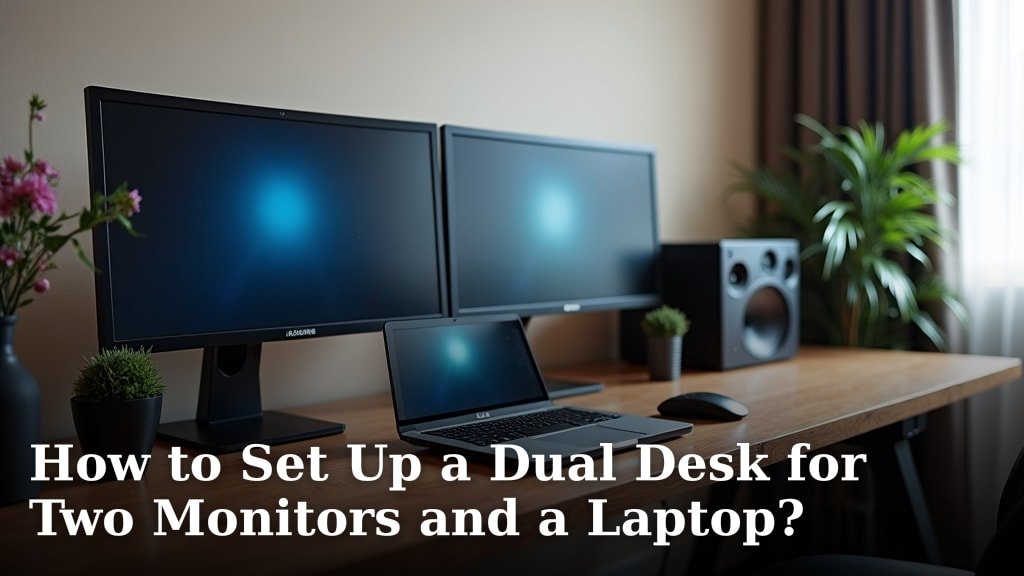
Width depends on your monitor setup. Single monitor? 48 inches works fine. Dual monitors? Go for 60 inches or more.
Height Adjustability Matters
Standing desks aren’t just office trends. Many gamers find switching between sitting and standing reduces fatigue during marathon sessions.
Fixed height desks should sit around 28-30 inches tall for most people. But everyone’s different, so test before buying if possible.
Essential Gaming Chair Features
Your chair affects your performance more than you might think. Poor posture leads to back pain, neck strain, and reduced focus.
Research from ergonomic specialists shows that lumbar support prevents the slouching that causes long-term spine issues.
Adjustability Options You Need
Seat height adjustment is non-negotiable. Your feet should rest flat on the floor with your thighs parallel to the ground.
Armrest height and width adjustment help prevent shoulder strain. Your arms should rest comfortably without lifting your shoulders.
Material Considerations
Mesh backs breathe better during long sessions. Leather looks nice but can get sweaty. Fabric strikes a middle ground.
Memory foam cushions feel great initially but may compress over time. High-density foam lasts longer.
Monitor Setup Optimization
Monitor placement can make or break your gaming comfort. Get this wrong, and you’ll develop neck pain fast.
Eye-level positioning is the golden rule. The top of your screen should align with your eye level when sitting normally.
Distance and Angle Guidelines
Sit 20-26 inches away from your monitor. Closer causes eye strain. Further makes text hard to read.
Tilt your screen back slightly – about 10-20 degrees. This matches your natural downward gaze.
Multiple Monitor Arrangements
Dual monitors should form a slight curve around you. Angle each monitor about 15 degrees inward.
Ultra-wide monitors eliminate bezels but take up more desk depth. Consider your space before choosing.
Lighting Solutions for Gaming
Good lighting reduces eye strain and creates atmosphere. But many gamers get this completely wrong.
Avoid putting lights directly behind your monitor. This creates glare and forces your eyes to constantly adjust between bright and dark areas.
Ambient Lighting Options
LED strips behind your desk create gentle ambient light. This reduces the contrast between your bright screen and dark room.
Bias lighting – strips attached to the back of your monitor – specifically reduces eye strain according to vision research.
Task Lighting for Gaming
Desk lamps help when you need to see your keyboard or take notes. Position them to avoid screen glare.
RGB lighting looks cool but can be distracting during competitive gaming. Save the light shows for casual sessions.
Cable Management Systems
Messy cables don’t just look bad – they’re trip hazards and dust collectors. Plus, they make upgrading your setup a nightmare.
I researched various cable management solutions and found that simple approaches work best.
Under-Desk Organization
Cable trays mount under your desk and hide power strips. This keeps cables off the floor and easily accessible.
Adhesive cable clips guide individual cables along desk edges. Use them sparingly – too many looks messy.
Power Management
Surge protectors with USB ports reduce adapter clutter. Mount them under your desk for easy access.
Label your cables. Trust me on this one. You’ll thank yourself later when something needs unplugging.
Storage and Organization
Gaming gear multiplies faster than you expect. Controllers, headsets, games, snacks – where does it all go?
Built-in storage beats add-on organizers. Look for desks with drawers or shelves if possible.
Peripheral Storage Solutions
Headphone hangers keep expensive headsets safe and easily accessible. Wall-mounted or desk-clamp versions both work well.
Controller stands prevent joystick drift from dropping controllers. They also keep charging cables organized.
Game and Media Storage
Even in the digital age, you’ll accumulate physical items. Charging cables, backup controllers, cleaning supplies.
Drawer organizers or small bins keep small items from becoming junk piles.
Ergonomic Accessories
Small additions can make huge comfort differences. These often-overlooked items prevent common gaming injuries.
Keyboard and Mouse Support
Wrist rests reduce pressure on your median nerve. This prevents the numbness and tingling of carpal tunnel syndrome.
Mouse pads with gel support serve the same purpose for your mouse hand.
Foot Support Options
Footrests help shorter gamers maintain proper leg position. Your knees should bend at about 90 degrees.
Anti-fatigue mats work great if you use a standing desk setup.
Temperature and Air Quality
Gaming generates heat – from you, your computer, and your monitors. Hot rooms kill concentration and comfort.
Position your setup away from direct sunlight and heating vents when possible.
Cooling Solutions
Small desk fans improve personal airflow without cooling your entire room. They’re quieter than ceiling fans too.
Good room ventilation prevents stuffiness during long sessions. Crack a window or run a fan occasionally.
Budget-Friendly Setup Tips
You don’t need to spend thousands to create a great gaming space. Start with basics and upgrade gradually.
Prioritize your chair and desk first. These affect every gaming session, so invest here if your budget is limited.
| Priority Level | Essential Items | Estimated Cost |
|---|---|---|
| High | Desk, Chair, Basic Lighting | $300-600 |
| Medium | Cable Management, Storage | $50-150 |
| Low | Decorative Items, Upgrades | $100-300 |
Conclusion
Building the perfect gamer desk setup takes time and planning. Start with a solid foundation – a good desk and chair – then add accessories that solve specific problems you encounter.
Remember that comfort directly impacts performance. Every element should support longer, more enjoyable gaming sessions. Don’t rush the process. Build your setup gradually, and you’ll create a space that serves you well for years to come.
What’s the ideal desk size for a dual monitor gaming setup?
For dual monitors, choose a desk at least 60 inches wide and 30 inches deep. This provides enough space for two 24-27 inch monitors with room for peripherals and prevents crowding that leads to poor posture.
How high should my gaming monitor be positioned?
Position your monitor so the top edge aligns with your eye level when sitting normally. Your eyes should naturally look slightly downward at the center of the screen, reducing neck strain during extended gaming sessions.
Do I really need a gaming chair, or will any office chair work?
Any ergonomic office chair with proper lumbar support, adjustable height, and armrests works fine for gaming. Gaming chairs often prioritize aesthetics over ergonomics, so focus on comfort features rather than gaming branding.
What’s the best way to manage cables in a gaming setup?
Use under-desk cable trays for power strips and thick cables, adhesive clips for routing individual cables, and label everything. Keep solutions simple – overly complex cable management systems become harder to maintain when you upgrade equipment.
How can I reduce eye strain during long gaming sessions?
Add bias lighting behind your monitor to reduce screen-to-room contrast, follow the 20-20-20 rule (look at something 20 feet away for 20 seconds every 20 minutes), and ensure your room has adequate ambient lighting to avoid gaming in complete darkness.