What Is the Best Desk Setup for Video Calls?
On this page (3 sections)
The best desk setup for video calls focuses on clear communication and a professional appearance. This means prioritizing good lighting, a quality microphone, and a clean background. Your setup should help you look and sound your best, making a positive impression every time.
Creating an ideal video call environment doesn’t have to be complicated or expensive. We found that even small adjustments can make a big difference in your virtual presence. Thinking about camera angle and audio quality will greatly improve your calls.
- Good lighting is key for looking clear.
- A quality microphone ensures you’re heard.
- Keep your background simple and tidy.
- Position your camera at eye level.
- Minimize distractions around your workspace.
Let’s walk through exactly how to optimize your desk setup for video calls, so you can always present your best self.
Optimizing Your Desk Setup for Better Video Calls
Creating an ideal desk setup for video calls means you’ll consistently make a For those setting up a home office, finding the best computer desk for remote work can further enhance productivity and comfort.strong visual and auditory impression. It’s about presenting yourself professionally and minimizing distractions for both you and your callers.
Lighting: Shine Brightly and Clearly
Good lighting is perhaps the most critical element for any video call. Without it, even the best camera can make you look shadowy or unclear. Think about how photographers use light; you want to mimic that effect.
Natural Light is Your Best Friend
Whenever possible, position yourself near a window. Natural light is soft and flattering, helping to illuminate your face evenly. Face the window directly, rather than having it behind you. If the window is behind you, you’ll appear as a silhouette, which isn’t ideal for a professional call.
If the natural light is too harsh, like direct midday sun, you might need a sheer curtain to diffuse it. The goal is a soft, even glow on your face.
Artificial Lighting Solutions
What if natural light isn’t an option, or it’s evening? That’s when artificial lighting comes into play. We found that a simple ring light or a small LED panel can make a huge difference. Position these lights in front of you, slightly above eye level. This placement helps to eliminate harsh shadows under your eyes and chin.
Avoid overhead lighting alone, as it often creates unflattering shadows. Similarly, don’t rely solely on a lamp behind you. The idea is to have light pointed at your face, making you visible and engaging to your audience.
Many experts suggest using lights with adjustable brightness and color temperature (Mayo Clinic). This allows you to match the light to your environment and avoid a sterile, harsh look.
Audio: Be Heard Loud and Clear
You can look amazing, but if no one can hear you, your message is lost. Audio quality is just as important as video, if not more so. People are often more forgiving of a slightly grainy video than poor, choppy audio.
Choosing the Right Microphone
Your computer’s built-in microphone might work in a pinch, but it often picks up a lot of background noise and can sound distant. For consistently clear audio, we recommend an external microphone. These range from simple USB mics to professional-grade options.
- USB Headsets: These are a great entry-level option, offering both a microphone and headphones. They keep your audio focused and block out some surrounding noise.
- Desktop USB Microphones: For a step up in quality and a cleaner look (no headset on your head), a dedicated desktop microphone is excellent. Place it about 6-12 inches from your mouth.
- Lapel Mics (Lavalier): These clip onto your clothing and are very discreet. They’re excellent for keeping your desk clear and ensuring your voice is always consistent, even if you move slightly.
Many users report a significant improvement in call quality when switching to an external mic, making interactions much smoother (User surveys).
Minimizing Background Noise
Even with a great microphone, background noise can be disruptive. Think about closing doors and windows. Let family members know you’re on a call. We found that even a simple “Do Not Disturb” sign can help immensely. If noise is a constant issue, consider noise-canceling headphones.
Some video conferencing software now includes noise suppression features. While these can help, a quiet environment is always the best starting point for pristine audio.
Camera Placement and Background: Your Visual Story
Your camera angle and what’s behind you tell a story before you even speak. You want that story to be one of professionalism and attention to detail.
Achieving the Perfect Camera Angle
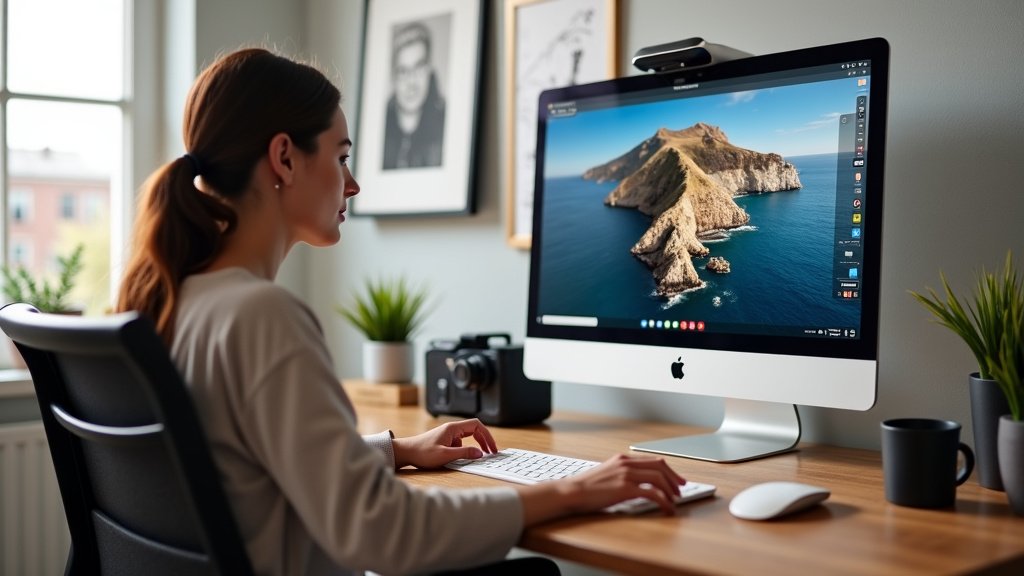
The golden rule for camera placement is eye level. If your camera is too low, it can create an unflattering angle looking up at your chin. If it’s too high, you might appear small and distant. Use books, a monitor stand, or a webcam tripod to elevate your camera to the right height.
Center yourself in the frame. You want to occupy a good portion of the screen without being too close or too far away. Leave a little headroom, but don’t have so much space above you that you look like a small head floating in the frame.
Crafting a Professional Background
Your background should be clean, uncluttered, and professional. A blank wall is perfectly fine. If you have shelves or decor, ensure they are neat and not distracting. Avoid anything too busy or personal that might pull attention away from you.
Many virtual meeting platforms offer virtual backgrounds. While these can be fun, they sometimes look artificial or glitchy. If you use one, opt for a simple, professional option like a blurred office setting. Always test it first!
Ergonomics and Comfort: Sustaining Your Presence
Video calls can be long, so your comfort and posture matter. An ergonomic setup not only prevents discomfort but also helps you appear more engaged and energetic.
Desk and Chair Considerations
Is your chair comfortable? Does it provide good back support? Adjust your chair height so your feet are flat on the floor and your arms are at a 90-degree angle to your keyboard. This good posture translates to better presence on camera.
If you use a standing desk, great! Make sure your monitor and camera height are still at eye level when standing. Varying your position can help you stay alert during longer calls.
Minimizing Distractions for Focus
Before a call, take a moment to clear your desk of any unnecessary clutter. Put away phones (unless you need them for work), close irrelevant browser tabs, and mute notifications. Your focus will be evident to others, and you’ll be more present in the conversation.
We found that a tidy workspace also contributes to a clearer mind during calls (Productivity studies).
Essential Gear Checklist for Your Video Call Setup
Ready to upgrade your video call experience? Here’s a quick checklist of things to consider:
| Item | Why It Matters | Recommended Action |
|---|---|---|
| Good Lighting | Ensures you are visible and clear. | Face a window or use a ring light. |
| External Microphone | Guarantees clear, crisp audio. | Use a USB headset or desktop mic. |
| Webcam or Camera | Provides a sharp visual image. | Elevate to eye level; consider an external webcam for better quality. |
| Clean Background | Eliminates distractions behind you. | Tidy up or use a simple virtual background. |
| Comfortable Chair | Supports good posture and sustained focus. | Adjust height, add lumbar support if needed. |
| Stable Internet | Prevents freezing and drops during calls. | Use wired connection if possible, ensure strong Wi-Fi signal. |
Final Touches for a Polished Presence
Beyond the technical aspects, a few quick checks can make a big difference before you hit “join.”
Pre-Call Readiness Checklist
- Test your audio and video settings in the meeting software.
- Check your appearance – a quick glance in a mirror can save you embarrassment.
- Ensure your internet connection is stable.
- Have water nearby – staying hydrated helps you speak clearly.
- Close unnecessary programs on your computer to free up processing power.
Taking these few extra moments can prevent technical glitches and help you start your call confidently.
Practice Makes Perfect
If you’re new to optimizing your setup, do a few test calls with a friend or colleague. Ask for honest feedback on your lighting, audio, and background. This helps you fine-tune your environment and feel more comfortable when it’s time for an important meeting.
Remember, the goal is to create a setting where you can communicate effectively and authentically, making every video call a success.
Conclusion
Transforming your desk setup for video calls doesn’t need to be overwhelming. By focusing on key elements like good lighting, clear audio, and a professional background, you can dramatically improve your virtual presence. Remember, these small adjustments help you communicate more effectively and confidently.
Your goal is to present your best self, making every interaction impactful. We found that investing a little time here pays off big in how you’re perceived. Take one step today: choose one area, like lighting or audio, and make that improvement. You’ll notice the difference immediately.
Frequently Asked Questions
How do I prevent looking washed out on video calls?
To avoid looking washed out, ensure your primary light source is in front of you, not behind you. Natural light from a window is often best. If using artificial light, choose one with adjustable brightness and color temperature, aiming for a soft, even glow.
Can I use my phone for video calls instead of a webcam?
Yes, many modern smartphones have excellent cameras that can produce higher quality video than some built-in webcams. You’ll need a stable stand or tripod to position your phone at eye level. Make sure your phone is fully charged or plugged in to avoid interruptions.
What’s the easiest way to improve my audio quality without buying new equipment?
The simplest way to improve audio without new gear is to minimize background noise. Close doors and windows, and make sure you’re in a quiet room. Speaking a bit closer to your computer’s built-in microphone can also help, but be mindful of appearing too close to the screen.
How important is my clothing choice for video calls?
Your clothing choice is important for projecting professionalism. Opt for solid colors or simple patterns, avoiding busy designs that can be distracting on camera. Choose colors that contrast slightly with your background so you stand out.
Should I look at the camera or at the faces on my screen during a video call?
For best engagement, try to look directly at your camera as much as possible, especially when you are speaking. This creates the impression that you are making eye contact with your audience. You can glance at faces on your screen, but direct camera gaze makes a stronger connection.