How to Set Up a Dual Desk for Two Monitors and a Laptop?
On this page (8 sections)
- Setting Up Your Two-Monitor and Laptop Desk Like a Pro
- Desk Size Matters: Finding the Right Foundation
- Monitor Mounts: Clearing the Clutter and Gaining Flexibility
- Laptop Placement: Integrating Your Portable Powerhouse
- Cable Management: The Secret to a Clean Workspace
- Ergonomics: Working Comfortably for Longer
- Conclusion
- Frequently Asked Questions
Setting up a dual desk for two monitors and a laptop is totally doable and can boost your productivity. For a shared workspace, see these two-person desk layout ideas. You just need the right desk setup and some smart cable management to make it work without feeling cluttered. Think of it as creating your own command center for work or play!
Many people find that adding extra screens to their workspace dramatically improves efficiency. A dual monitor setup with your laptop offers a flexible and expansive digital workspace. It’s about making your day-to-day tasks smoother and more enjoyable.
- Get the right desk size.
- Choose monitor mounts wisely.
- Plan your laptop placement.
- Organize your cables neatly.
- Consider ergonomics for comfort.
Let’s walk through exactly how to set up your perfect dual monitor and laptop desk, so you can get back to what you do best!
Setting Up Your Two-Monitor and Laptop Desk Like a Pro
Turning your workspace into a multi-screen command center is a smart move. A dual monitor setup with your laptop can supercharge your productivity and make your daily tasks much smoother. It might seem a little daunting at first, but with a few key steps, you’ll have a functional and comfortable setup in no time. We’ll guide you through choosing the right desk, mounting your screens, placing your laptop, and managing all those pesky cables.
Desk Size Matters: Finding the Right Foundation
The first thing you need is the right real estate. Your desk is the bedrock of your setup, so it needs to be spacious enough. You’ll be fitting two monitors, your laptop, and all your peripherals. A desk that’s too small will feel cramped and counterproductive. You want room to breathe and work without bumping into things.
What’s the Magic Number for Desk Width?
Most people find that a desk that’s at least 55 inches wide is a good starting point for a dual monitor setup. This gives you enough space to comfortably place two standard monitors side-by-side. If you plan on using larger monitors or want extra room for accessories, aim for 60 inches or more. Depth is also important. You want at least 24 inches of depth, but 30 inches is even better. This ensures your monitors are at a comfortable viewing distance and you have space for your keyboard and mouse.
Desk Height for Ultimate Comfort
Desk height is critical for ergonomics. You want your arms to be at about a 90-degree angle when typing. Many standard desks are around 29-30 inches high. If this doesn’t work for you, consider an adjustable-height desk. These are fantastic because you can set them to your perfect height or even switch between sitting and standing throughout the day. Research from the Occupational Safety and Health Administration (OSHA) suggests that maintaining a neutral posture can help prevent discomfort and strain.
Monitor Mounts: Clearing the Clutter and Gaining Flexibility
Monitor mounts are your best friend when setting up a dual desk. They lift your monitors off the desk surface, freeing up valuable space and allowing for more ergonomic positioning. There are a few types to consider, each with its own benefits.
Desk Clamp vs. Grommet Mounts
Desk clamp mounts attach to the edge of your desk. They are easy to install and remove, making them a great choice if you might move your setup later. Grommet mounts, on the other hand, go through a pre-drilled hole in your desk. They offer a very sturdy and clean installation. Both types can support single or dual monitors. When choosing, make sure the mount can support the weight and size of your monitors.
Single Arm vs. Dual Arm Mounts
You can get mounts with single arms that hold one monitor, or dual arm mounts designed to hold two. A dual arm mount often offers more adjustability for positioning your monitors exactly where you want them. You can often find dual arm mounts that also include a bracket to hold your laptop, which can be a space-saving bonus. Many ergonomic experts recommend adjustable monitor arms to allow for easy repositioning, which can reduce eye strain and neck pain.
Choosing the Right Mount for Your Setup
When selecting a mount, always check the VESA compatibility. This is a standard mounting pattern. Also, look at the weight capacity. If you have large or heavy monitors, you need a mount that can handle them. Finally, consider the range of motion. Can you tilt, swivel, and rotate your monitors easily? This flexibility is key to finding your perfect viewing angle.
Laptop Placement: Integrating Your Portable Powerhouse
Now, where does your laptop fit in? You have a few excellent options, depending on how you want to use your laptop screen.
Using the Laptop as a Third Screen
Many people like to use their laptop screen as a third display. In this case, you’ll place the laptop next to your external monitors. You can position it to the left or right, or even slightly behind one of the monitors if space allows. Make sure it’s not blocking your view of the main screens. You’ll need to connect it to your main computer (if it’s a separate machine) or use it as an extended display for itself.
Using a Laptop Stand
If you plan to use your laptop primarily with your external monitors and only need its screen occasionally, a laptop stand is a fantastic idea. It can lift your laptop off the desk, saving space and improving airflow to prevent overheating. Some stands are simple risers, while others are adjustable arms, similar to monitor mounts. A stand can position your laptop screen at a better height, reducing neck strain if you do need to look at it.
Docking Station or Hub Integration
To make connecting your laptop easy, consider a docking station or USB-C hub. This allows you to connect your laptop to both monitors, your keyboard, mouse, and power with a single cable. This is a huge time-saver and keeps your desk looking much cleaner. Research from tech review sites consistently highlights docking stations as essential for efficient laptop-based workstations.
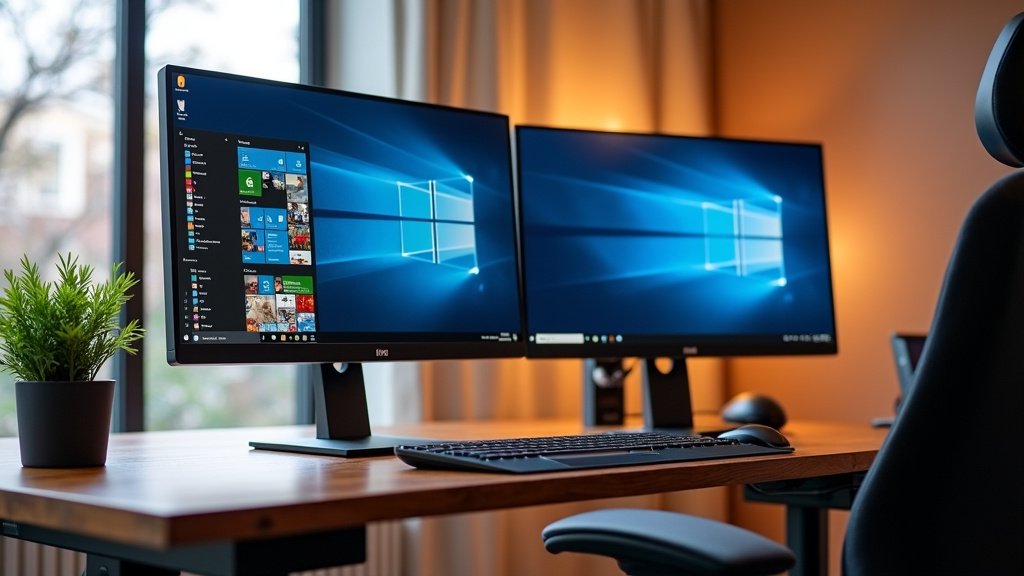
Cable Management: The Secret to a Clean Workspace
This is where many people get tripped up. A dual monitor setup can quickly turn into a spaghetti monster of wires. Good cable management is essential for a clean, organized, and frustration-free workspace.
The Power of Cable Sleeves and Ties
Start by gathering your cables. Use velcro cable ties or zip ties to bundle cables together. This immediately makes a huge difference. Cable sleeves are fabric tubes that you can thread your cables through. They look much neater than individual wires. You can buy these in various lengths and colors.
Under-Desk Solutions for Hidden Wires
Don’t let cables trail across your desk. Look for under-desk cable trays or management nets. These attach to the underside of your desk and hold your power strips, adapters, and excess cable length out of sight. This creates a clean visual line and prevents cables from getting tangled or pulled when you move your chair.
Monitor Arm Cable Management
Most monitor arms have built-in features to help manage cables. Look for clips or channels along the arm where you can route your monitor cables. This keeps them neatly tucked away and prevents them from dangling down your monitors.
Ergonomics: Working Comfortably for Longer
You’ve got the screens, the laptop, and the cables sorted. Now let’s talk about making sure your setup is comfortable and good for your body.
Monitor Positioning for Eye Strain Reduction
The top of your monitor screen should be at or slightly below eye level. This is a recommendation often cited by optometrists and ergonomic specialists. You shouldn’t have to crane your neck up or down to see your screens. Place your monitors about an arm’s length away from you. If you use your monitors for extended periods, consider using blue light filters or adjusting your screen brightness to reduce eye fatigue. The American Optometric Association suggests following the 20-20-20 rule: every 20 minutes, look at something 20 feet away for 20 seconds.
Keyboard and Mouse Placement
Your keyboard should be positioned so your elbows are bent at about 90 degrees when you type. Your wrists should be straight, not bent up or down. A wrist rest can help maintain a neutral wrist position. Your mouse should be close to your keyboard to avoid reaching. This might seem like a lot of detail, but these small adjustments can prevent long-term discomfort.
Creating Your Ideal Setup: A Quick Checklist
Let’s summarize the key steps to ensure your dual monitor and laptop desk setup is perfect:
- Measure your space and choose a desk that’s wide and deep enough.
- Select monitor mounts that match your monitors’ size and weight.
- Decide on your laptop’s placement and consider a stand or docking station.
- Gather cable management tools like ties, sleeves, and trays.
- Adjust monitor height and distance to be at eye level and arm’s length.
- Ensure your keyboard and mouse allow for neutral wrist and arm positions.
Setting up a dual monitor and laptop desk is an investment in your comfort and efficiency. By carefully planning each element, from desk size to cable routing, you can create a workspace that supports you throughout your day.
Conclusion
You’ve now got the blueprint to build your ultimate dual monitor and laptop workspace! We’ve covered everything from picking the right desk size and sturdy monitor mounts to smart laptop placement and keeping those cables hidden. Remember, it’s not just about having more screens; it’s about creating a comfortable, efficient, and clutter-free environment that works for you.
Take these steps one by one. Start with measuring your space and choosing the right desk. Then, select mounts that fit your monitors and budget. Don’t forget the small touches like cable management and ergonomic adjustments. Your ideal setup is within reach, so dive in and start building your command center today!
Frequently Asked Questions
What’s the minimum desk width I need for two monitors and a laptop?
Most people find a desk that’s at least 55 inches wide works well. This gives you enough room for two standard monitors side-by-side, plus your laptop. If you use larger monitors or want more space for accessories, aim for 60 inches or wider.
Can I use my laptop as one of the main displays?
Yes, you absolutely can! You can position your laptop next to your external monitors to use