How to Set Up Dual Monitors on a Desk?
On this page (3 sections)
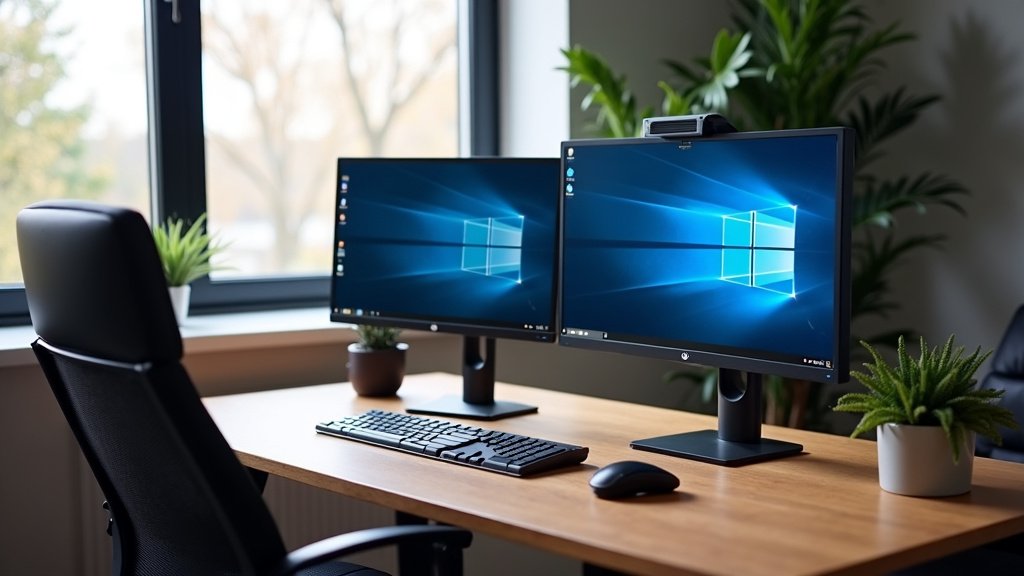
To set up dual monitors on a desk, you’ll need to gather your equipment, connect the monitors to your computer, and then configure the display settings in your operating system. This process is surprisingly straightforward and will boost your productivity.
Many people find that adding a second screen creates a much more efficient workspace. We found that a dual monitor setup can reduce the time spent switching between applications by up to 10%. This simple upgrade transforms how you work or play, giving you more screen real estate without breaking the bank.
- Gather monitors, cables, and a stand.
- Connect monitors to your computer.
- Adjust display settings for arrangement.
- Optimize for comfort and productivity.
- Troubleshoot common issues easily.
Ready to ditch the endless tab-switching and enjoy a smoother workflow? Let’s walk through exactly how to set up your dual monitors, step by step.
Arranging Your Dual Monitor Setup for Optimal Productivity
Setting up dual monitors can feel like unlocking a secret level of productivity. You’re not just adding a screen; you’re expanding your digital workspace. This guide will walk you through the essential steps to get your new setup running smoothly.
The first step is always preparation. Do you have everything you need? It’s like baking a cake – you wouldn’t start without all the ingredients. We’ll ensure you’re ready before you even plug anything in.
Gathering Your Essential Equipment
Before you dive into connecting wires, let’s make sure you have all the necessary components. This prevents frustrating mid-setup pauses. Think of it as your pre-flight checklist for a smooth journey.
Monitors: Matching or Mismatching?
You’ll need two monitors, of course! You might already have one and are adding a second. Consider the monitor size and resolution. Many people prefer two identical monitors for a seamless visual experience. It creates a balanced look and feels more cohesive.
However, mixing monitor brands or sizes is perfectly fine too. For example, you might use a larger, higher-resolution monitor for your main work and a smaller one for chat or email. The key is that they both fit comfortably on your desk and you find the arrangement functional.
Cables: The Lifeline of Your Display
Each monitor needs a power cable and a video cable. What kind of video cable do you need? This depends on your monitors and your computer’s graphics card. The most common types are HDMI, DisplayPort, and USB-C (Thunderbolt). Some older systems might still use DVI or VGA.
Check the ports on your computer and your monitors. It’s important to have cables that match. Sometimes, new monitors come with all the necessary cables. If not, a quick check of your ports will tell you what to buy. We found that having extra cables on hand can be useful for future upgrades or troubleshooting.
Monitor Stands and Mounts: Elevating Your Ergonomics
A good monitor stand or mount can make a huge difference in comfort and desk space. You can use the stands that come with your monitors, but they often take up a lot of room. A dual monitor stand or arm can free up valuable desk real estate and allow for more ergonomic positioning.
There are several options: a single stand that holds two monitors, or two individual arms that clamp to your desk. Some even mount directly to the wall. We recommend choosing one that allows for height adjustment, tilt, and swivel. This helps you maintain a healthy posture and reduces strain, as highlighted by experts in ergonomics (Occupational Safety and Health Administration).
Connecting Your Monitors to Your Computer
Now that you have all your gear, it’s time to plug everything in. This is usually the easiest part of the whole process. Think of it like connecting a home theater system – just a few main connections.
Powering Up Your Displays
First, connect the power cable to each monitor and then plug it into a power outlet or power strip. Make sure your power strip has enough outlets for both monitors and your computer. You don’t want to overload a single outlet.
Connecting Video Cables
Next, connect the video cables. Take one end of the video cable (e.g., HDMI) and plug it into the corresponding port on your monitor. Then, take the other end and plug it into an available video output port on your computer. Repeat this for your second monitor.
Your computer’s graphics card usually has multiple video output ports. Make sure you use two separate ports for your two monitors. Don’t try to daisy-chain them unless your specific monitors and graphics card support that feature.
Configuring Your Display Settings in Windows or macOS
Once everything is physically connected, your computer should detect the new monitors. However, they might not be set up exactly how you want them. This is where you tell your computer how to use the extra screen real estate.
Windows Display Settings
If you’re using Windows, right-click on an empty area of your desktop and select “Display settings.” You’ll see a diagram showing your monitors, usually labeled “1” and “2.”
- Identify Monitors: Click “Identify” to see which number corresponds to which physical monitor.
- Arrange Your Displays: Drag the monitor icons in the diagram to match their physical arrangement on your desk. This is important for smooth cursor movement between screens. For example, if monitor 2 is to the right of monitor 1, drag its icon to the right.
- Multiple Displays Setting: Under “Multiple displays,” you’ll have options like “Extend these displays” (most common and recommended for productivity), “Duplicate these displays” (shows the same image on both), or “Show only 1/2.” Select “Extend these displays” to get that expanded workspace.
- Resolution and Orientation: You can also adjust the resolution and orientation (portrait or landscape) for each monitor individually. Always set the resolution to the monitor’s “Recommended” setting for the clearest picture.
macOS Display Settings
For macOS users, go to “System Settings” (or “System Preferences” on older versions), then click “Displays.”
- Arrangement Tab: In the “Arrangement” tab, you’ll see a graphical representation of your monitors. Drag the monitor icons to match their physical setup. This ensures your mouse moves logically from one screen to the next.
- Primary Display: The white bar at the top of one of the monitor icons indicates your primary display (where your menu bar and dock will appear). Drag this bar to the monitor you want as your main screen.
- Resolution and Rotation: You can click on each individual monitor icon to adjust its resolution, brightness, and rotation (if applicable).
Optimizing Your Dual Monitor Setup for Comfort
Setting up dual monitors isn’t just about getting them to work; it’s about making them work for you. Ergonomics play a big role in long-term comfort and productivity. We want you to feel good while you work or play!
Ergonomic Positioning for Health
Position your monitors so the top of the screen is at or slightly below eye level. This helps prevent neck and shoulder strain. Both monitors should be about an arm’s length away from you. If you use one monitor more than the other, place your primary monitor directly in front of you. The secondary monitor can be slightly angled. A dual monitor footrest guide can help you consider foot support while arranging a seated setup.
Many experts, including the Mayo Clinic, suggest that proper monitor placement can greatly reduce the risk of repetitive strain injuries. Take frequent breaks to stand and stretch. Your body will thank you!
Here’s a quick checklist to ensure your setup is truly optimized:
- Both monitors powered on and connected.
- Video cables securely plugged into computer.
- Display settings configured to “Extend displays.”
- Monitors physically arranged to match software.
- Primary monitor centered for your main tasks.
- Monitor tops at or slightly below eye level.
Troubleshooting Common Dual Monitor Issues
Sometimes, things don’t go exactly as planned. Don’t worry; most dual monitor issues are easy to fix. It’s like a minor hiccup, not a major catastrophe.
| Problem | Possible Solution |
|---|---|
| One or both monitors aren’t detected. | Check all cable connections. Ensure monitors are powered on. Restart your computer. Update your graphics drivers. |
| Monitors are duplicated, not extended. | Go to display settings and select “Extend these displays” (Windows) or adjust in “Arrangement” (macOS). |
| Mouse moves in the wrong direction between screens. | Drag the monitor icons in your display settings to match their physical layout. |
| Poor image quality or incorrect resolution. | In display settings, set resolution to the “Recommended” (native) setting for each monitor. Check cable quality. |
| Flickering screen. | Check cable connections. Try a different video port or cable. Update graphics drivers. |
Updating Graphics Drivers
Outdated or corrupt graphics drivers are a common cause of display issues. You can usually find the latest drivers on the website of your graphics card manufacturer (NVIDIA, AMD, or Intel). Downloading and installing these updates can often resolve many display problems, giving you a fresh start.
A quick search for “update your graphics card brand drivers” will point you to the right place. Follow their instructions carefully. It’s like giving your computer a fresh pair of glasses so it can see clearly again.
Restarting Your System
Sometimes, the simplest solution is the best. A full restart of your computer can resolve many temporary glitches. This allows your operating system to re-detect and reconfigure your hardware from scratch. It’s the classic “turn it off and on again” advice for a reason!
Don’t just put your computer to sleep; perform a full shutdown and then power it back on. You might be surprised how often this works. It’s a bit like giving your computer a mini-reset button.
Conclusion
You now have all the tools to transform your workspace. Setting up dual monitors is a simple project that offers big returns in productivity and comfort. You’ve learned how to gather your gear, connect everything, and fine-tune your settings for optimal use. Don’t let common hiccups deter you; most issues have straightforward fixes.
Take pride in your new, expanded digital canvas. We encourage you to adjust and personalize your setup over time. Experiment with different arrangements until it feels just right for your workflow. Get ready to experience a more efficient and enjoyable computing experience!
Frequently Asked Questions
Can I use different sized monitors in a dual setup?
Yes, absolutely! Many people use monitors of different sizes and resolutions. Your operating system allows you to adjust each display independently. This means you can have a large main screen and a smaller secondary screen for specific tasks.
Do I need a powerful graphics card for dual monitors?
For basic office work and browsing, most modern computers can handle two monitors without a dedicated graphics card. However, for gaming or demanding graphical tasks, a discrete graphics card with multiple output ports is usually recommended. Check your computer’s specifications to be sure.
How do I move applications between my two screens?
Simply click and drag the window of the application you want to move. Drag it towards the edge of the screen that is adjacent to your other monitor. Your mouse cursor and the window will then seamlessly appear on the next display. Windows also offers keyboard shortcuts like Win + Shift + Left/Right Arrow.
Is it better to have my monitors side-by-side or stacked?
Most users prefer monitors side-by-side for a more natural horizontal workflow, especially for tasks requiring wide viewing. Stacking monitors can save desk space, but it might require more head movement. Choose what feels most comfortable and ergonomic for you.
What if my computer only has one video output port?
If your computer has only one video output, you might need a special adapter or a docking station. Some USB-C ports can support multiple displays with the right hub. Alternatively, you could look into USB-powered monitors that don’t require a traditional video output from your computer.