Can You Use a Laptop Stand with an External Keyboard?
On this page (4 sections)
Yes, you can absolutely use a laptop stand with an external keyboard. In fact, doing so is a fantastic way to improve your ergonomics and create a more comfortable workspace. This setup allows you to position your laptop screen at eye level while keeping your external keyboard and mouse at a comfortable typing height, reducing neck and shoulder strain. It’s a common and effective configuration for many users.
Many people find that using a laptop stand and an external keyboard together creates a setup that feels more like a traditional desktop computer. This arrangement is especially helpful if you spend long hours working or gaming on your laptop. You’ll discover that this combination can lead to better posture and a more enjoyable user experience, making it a popular choice for home offices and professional settings alike.
- Yes, using a laptop stand with an external keyboard works great.
- It helps you achieve better ergonomics.
- Your laptop screen can be at eye level.
- You can use your keyboard and mouse at a comfortable height.
- This setup can reduce neck and shoulder strain.
Let’s dive into why this setup is so popular and how you can get the most out of it.
Creating Your Ergonomic Laptop Setup with an External Keyboard
You’ve probably noticed it: that nagging ache in your neck after a long laptop session. Or maybe your shoulders feel a bit tense. It’s a common complaint, and there’s a smart solution. Using a laptop stand with an external keyboard is a game-changer for comfort and health. It’s not just about making your workspace look professional; it’s about making your body feel better.
The basic idea is simple: your laptop screen is usually too low for comfortable viewing. When you tilt your head down to see it, you strain your neck. An external keyboard lets you type at a natural angle, but without a stand, your screen is still problematic. Combining both fixes these issues beautifully. You can also pair the setup with an external monitor. You get a desktop-like experience, but with the portability of your laptop, as explained in our laptop versus desktop guide.
Why This Combination Works Wonders
Think about your posture when you’re hunched over a laptop. Your shoulders often round forward, and your neck juts out. This isn’t good for your spine. A laptop stand raises your screen to eye level. This encourages you to sit up straighter, aligning your ears, shoulders, and hips. It’s a small change with a big impact on your physical well-being.
When your laptop screen is at the right height, you don’t have to crane your neck. This reduces pressure on your cervical spine. Many experts agree that maintaining a neutral spine position is key to preventing chronic pain (Cleveland Clinic). An external keyboard allows your wrists to remain straight while typing. This avoids the awkward bending that can lead to carpal tunnel syndrome. See our guide to vertical laptop stand benefits for more ways a raised screen can help your setup.
The Science Behind Better Posture
Research in ergonomics highlights the importance of screen height. When a screen is too low, users tend to adopt a “text neck” posture. This can lead to headaches, upper back pain, and reduced lung capacity. Raising the screen to eye level helps maintain the natural curve of your spine.
Similarly, keyboard placement is vital. An external keyboard provides a full-sized typing experience. You can position it at a distance that allows your elbows to rest at a comfortable 90-degree angle. This reduces strain on your wrists and forearms. Many ergonomic guidelines suggest this setup for optimal comfort during prolonged computer use.
Choosing the Right Laptop Stand
Not all laptop stands are created equal. You’ll find a variety of styles, each with its own benefits. Some are fixed height, while others are adjustable. For maximum flexibility, an adjustable stand is often the best choice. This allows you to fine-tune the screen height and angle.
Consider the material and build quality. You want a stand that is sturdy and won’t wobble. Metal stands are generally more durable than plastic ones. Ventilation is also important. Many stands have open designs that allow air to circulate around your laptop, preventing overheating. This keeps your device running smoothly.
Types of Laptop Stands to Consider
- Adjustable Stands: These offer the most customization. You can easily change the height and angle.
- Fixed Stands: Simpler and often more affordable, but offer less flexibility.
- Portable Stands: Lightweight and foldable, ideal if you move your setup often.
- Stands with Drawers/Storage: These can help declutter your desk.
Think about where you’ll use the stand. If it’s for a permanent desk setup, a more robust, adjustable model might be perfect. If you travel or work from different locations, a lightweight, portable option makes more sense.
Selecting Your Ideal External Keyboard
Choosing an external keyboard is a personal decision. Think about how you type and what feels most comfortable. Compare mechanical and membrane keyboards: mechanical models offer tactile feedback and a satisfying click, but can be noisy. Membrane keyboards are quieter and often more affordable.
Size matters too. Do you need a full-sized keyboard with a numeric keypad? Or would a compact, tenkeyless (TKL) version work for you? A TKL keyboard saves desk space. Consider the key travel and actuation force – how far you press the keys and how much pressure it takes. These factors influence your typing speed and comfort.
Ergonomic Keyboard Options
For those seeking even more comfort, ergonomic keyboards are designed to promote a more natural hand and wrist position. These often have a split design or a curved shape. They can help reduce the strain on your wrists and forearms, especially for people prone to discomfort.
Wireless keyboards offer the advantage of a clutter-free desk. Just ensure you have a reliable connection. For gaming, some keyboards offer faster response times and customizable features. You can also compare laptop stands for gaming. The key is to find one that suits your needs and preferences.
Setting Up Your Ergonomic Workspace
Once you have your laptop stand and external keyboard, it’s time to set them up. This is where you bring it all together for maximum comfort and efficiency. The goal is to create a harmonious workspace that supports your body.
Positioning Your Laptop Screen
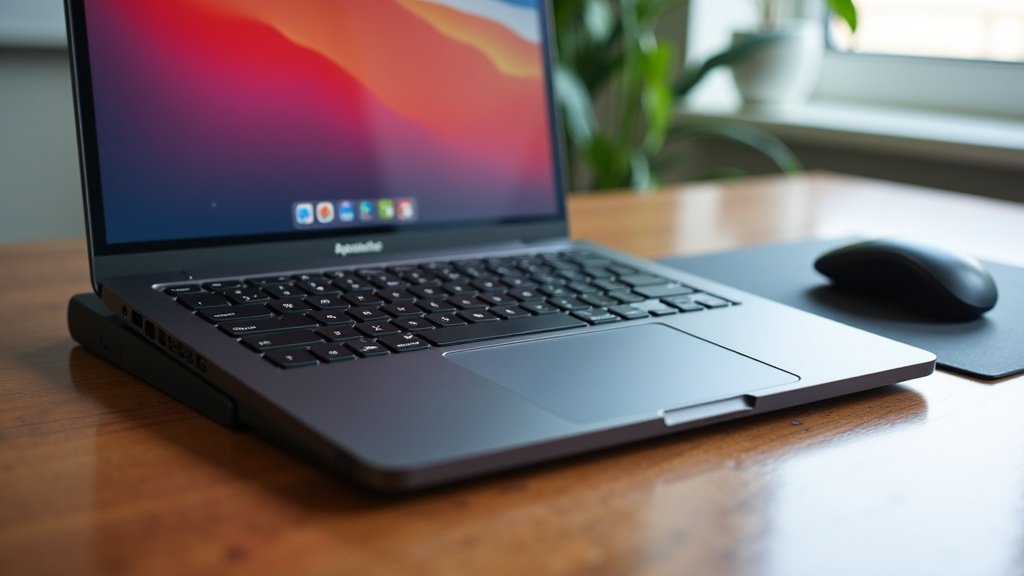
Place your laptop on the stand. The top of the screen should be at or slightly below eye level when you are sitting upright. You shouldn’t have to tilt your head up or down significantly. This position helps maintain a neutral neck posture. If your stand allows tilt, adjust it so you can see the screen clearly without glare.
You might need to experiment a little to find the perfect height. Imagine looking at a computer monitor in an office. They are typically positioned so you’re looking straight ahead. Your laptop screen should mimic this. This simple adjustment can drastically reduce neck strain over time.
Arranging Your Keyboard and Mouse
Place your external keyboard directly in front of you. Your elbows should be bent at about a 90-degree angle, with your forearms parallel to the floor. Your wrists should be straight, not bent up or down. Your shoulders should be relaxed. You shouldn’t feel tension.
Position your mouse close to the keyboard. Keeping your mouse within easy reach minimizes shoulder strain. If you use an external mouse, ensure it’s also at a comfortable height. The idea is to create a relaxed and natural posture for your arms and hands. This setup is designed to prevent fatigue.
The Ideal Desk Layout Checklist
- Laptop screen at eye level.
- Keyboard positioned for relaxed arms and straight wrists.
- Mouse within easy reach.
- Chair adjusted for proper back support.
- Feet flat on the floor or on a footrest.
- Adequate lighting to reduce eye strain.
This arrangement creates a more ergonomic setup than a standard laptop configuration. It allows your body to work in a more natural and supported way. Many users report feeling a noticeable difference in comfort after just a few hours.
Optimizing for Long-Term Comfort
Don’t forget to take breaks. Even with the best ergonomic setup, sitting for too long isn’t ideal. Stand up, stretch, and move around every 30 to 60 minutes. This helps improve circulation and reduces stiffness. Your body will thank you for it.
Consider adding accessories like a wrist rest for your keyboard and mouse. These can provide additional support and comfort. Make sure your chair is also properly adjusted. Good lumbar support is essential for maintaining good posture. A proper chair can make a huge difference in your overall comfort.
Making Small Adjustments for Big Gains
It might take a few days to get used to your new setup. Don’t be afraid to tweak the positions of your keyboard, mouse, or even the laptop stand itself. Small adjustments can lead to significant improvements in comfort. Listen to your body. If something feels uncomfortable, change it.
Think of it like breaking in a new pair of shoes. Initially, there might be a slight adjustment period. But soon, your body will adapt, and you’ll wonder how you ever worked without it. This optimized setup can lead to increased productivity and a more enjoyable work experience. It’s a simple yet effective way to prioritize your health while using your laptop.
Conclusion
You’ve learned that using a laptop stand with an external keyboard is a smart move for your comfort and health. This setup transforms your workspace, allowing for better posture and reduced physical strain. By positioning your screen at eye level and your keyboard at a natural typing height, you can say goodbye to neck and shoulder aches. Investing a little time in setting up your workspace correctly pays off with increased comfort and productivity. Start making these ergonomic adjustments today to feel the difference in your daily work routine.
Frequently Asked Questions
Will a laptop stand work if my laptop is very heavy?
Most quality laptop stands are built to support significant weight. Check the stand’s specifications for its maximum weight capacity before purchasing. Ensure the stand is stable and doesn’t wobble when your laptop is placed on it.
Do I need a special kind of external keyboard for an ergonomic setup?
While a standard external keyboard works well, ergonomic keyboards are designed for even better comfort. These often feature split designs or curved shapes to promote a more natural hand and wrist position. You can choose what feels best for your personal comfort.
How do I know if my laptop screen is at the right eye level?
When sitting upright, the top of your laptop screen should be at or just below your natural eye line. You shouldn’t need to tilt your head up or down to see the screen clearly. Adjust the stand until this position feels comfortable and natural.
Can I still close my laptop lid when using a stand and external keyboard?
Yes, you can typically keep your laptop lid closed in clamshell mode and still use it with a dual-monitor setup. Many users prefer this to maximize desk space and reduce distractions from the laptop screen itself. Just ensure your laptop is configured to stay on or wake up when you press a key on the external keyboard.
Is it difficult to adjust to a laptop stand and external keyboard setup?
It might take a few days for your body to adjust to the new posture and setup. Don’t be afraid to make small tweaks to the height, angle, or placement of your keyboard and mouse. Listen to your body and make adjustments as needed for optimal comfort.