Can You Use a Laptop Stand and External Monitor Together?
On this page (3 sections)
Yes, you can absolutely use a laptop stand and an external monitor together to create a more ergonomic and productive workspace. You can also keep the lid closed with the right settings; see laptop clamshell mode. This setup allows you to position your laptop screen at a comfortable viewing angle while simultaneously using a larger external display. Many users find this combination significantly improves their posture and reduces neck strain. It’s a smart way to upgrade your desk without buying a whole new computer.
Combining a laptop stand with an external monitor is a popular choice for home offices and professional workstations. It essentially turns your laptop into a more desktop-like experience, offering dual-screen productivity. This setup is particularly helpful if you’re spending long hours working or gaming and want to avoid discomfort. For gaming, compare laptop stands for gaming too. We found that proper positioning is key to maximizing the benefits of this dual setup. For help choosing your computer, see our laptop versus desktop guide.
- Yes, using a laptop stand and external monitor together works great.
- It helps you create a more comfortable and productive workspace.
- This setup can reduce neck strain and improve your posture.
- It’s a cost-effective way to get dual-screen benefits.
Ready to set up your dream dual-display workstation? Let’s walk through what you need to know about using a laptop stand with an external monitor.
So, you’re wondering if you can combine a laptop stand and an external monitor. The answer is a resounding yes! It’s a fantastic way to create a more comfortable and productive workspace. Think of it as giving your laptop a serious desk upgrade. You get the portability of your laptop with the benefits of a larger, more ergonomic setup. Many people find this arrangement makes long workdays much more bearable.
Boosting Your Productivity with a Laptop Stand and External Monitor
Using a laptop stand with an external monitor is a smart move. It transforms your desk into a dual-display powerhouse. This setup can significantly reduce physical strain. You can finally ditch that awkward hunching over your laptop. We’ve found that proper ergonomics are key for long-term comfort and focus.
Why This Setup Works So Well
Your laptop screen is often too low for comfortable viewing. This forces you to crane your neck. A laptop stand raises your screen to eye level. This is much better for your posture. Research shows that poor posture can lead to neck and back pain (Cleveland Clinic). When you add an external monitor, you gain screen real estate. This means less switching between windows and more focused work.
Achieving Better Ergonomics
The goal is to have your monitor at a comfortable viewing height. Your eyes should be at the top third of the screen. Your elbows should be bent at about 90 degrees. A laptop stand helps achieve this. It positions your laptop’s screen optimally. Your external monitor should also be placed correctly. This dual-monitor setup can prevent common desk-related discomfort.
The Role of the Laptop Stand
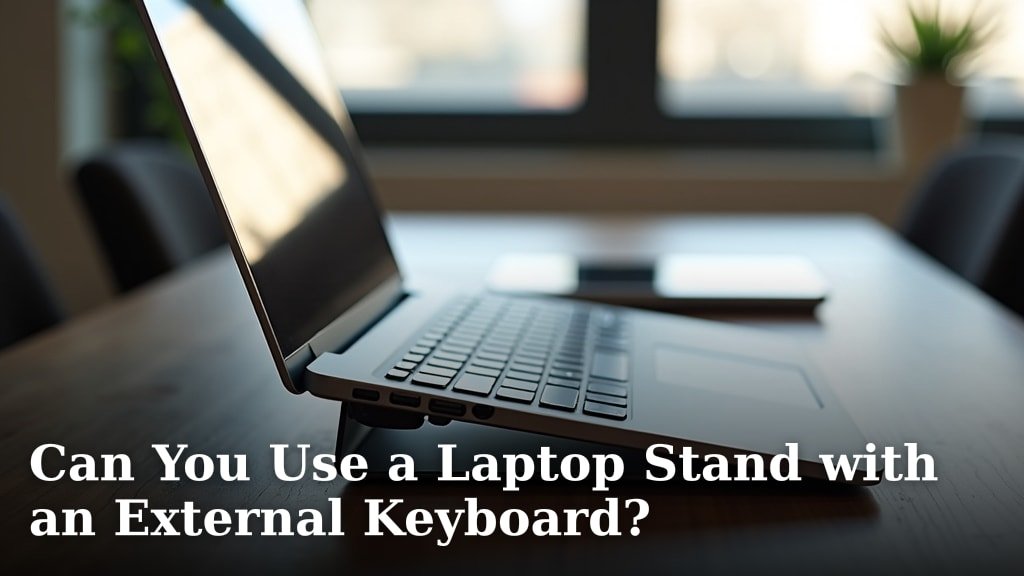
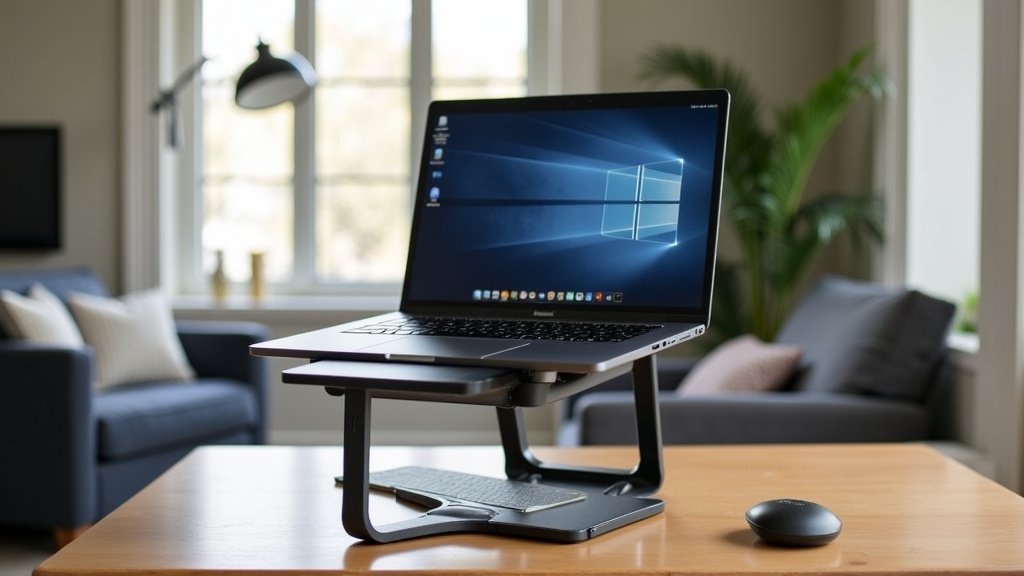
A laptop stand isn’t just a riser. It’s about creating the right foundation. It lifts your laptop so its screen can be at your eye level. Some stands also allow you to use your laptop’s keyboard and trackpad. Others are designed purely for screen height. Either way, it’s a critical piece of the ergonomic puzzle. We found that even a simple stand makes a noticeable difference. For more advantages, read about vertical laptop stand benefits.
Positioning Your External Monitor
Your external monitor should also be positioned carefully. It should be directly in front of you. The top of the screen should be at or slightly below eye level. This prevents you from tilting your head up or down too much. Keeping your monitor within arm’s reach is also important. This ensures you don’t have to overextend. Proper placement minimizes strain on your neck and shoulders.
Setting Up Your Dual-Display Workspace: The How-To
Getting this setup right is straightforward. You’ll need a few things. First, your laptop and an external monitor. Second, a laptop stand. You’ll also need the right cables to connect them. Most modern laptops have HDMI or USB-C ports for video output. Check your laptop’s ports before you buy cables.
Connecting Your Monitor
Connecting your external monitor is usually simple. You’ll plug one end of the cable into your laptop. The other end goes into your monitor. Once connected, your laptop should detect the monitor. You might need to adjust display settings. Right-click on your desktop and select “Display settings”. Here you can choose how to extend or duplicate your screen. We found that “Extend these displays” offers the most productivity.
Choosing the Right Laptop Stand
There are many types of laptop stands available. Some are simple fixed risers. Others are adjustable and can even swivel. Some are portable and fold flat. Consider what works best for your space. Do you need to move it often? Do you want to type on your laptop directly? Think about the height and angle adjustments you need. We found that adjustable stands offer the most flexibility for different users and tasks.
Considering Cable Management
A tidy desk makes for a tidy mind. Cables can quickly become a tangled mess. Look for stands with built-in cable management features. You can also buy separate cable ties or sleeves. Keeping cables organized prevents clutter. It also makes your workspace look much cleaner and more professional. This small step can really Keeping cables organized can improve your overall desk experience.improve your overall desk experience.
Maximizing Your Productivity with Dual Screens
Once set up, you’ll notice a big difference. Having two screens allows you to multitask more efficiently. You can keep reference materials on one screen. Then, work on your main task on the other. This reduces the time spent switching between applications. Many studies suggest that dual monitors can boost productivity by up to 50% (though this can vary widely). It’s like having a bigger, more organized desk for your digital life.
Workflow Enhancements
Think about your daily tasks. Can you keep your email open on one screen? Then, work on documents on the other. This arrangement is perfect for programmers. They can keep code on one screen and documentation on another. Graphic designers can keep their tools open on one monitor and their canvas on another. The possibilities are endless for streamlining your workflow.
Improved Focus and Reduced Distraction
When everything is on one small screen, you’re constantly switching. This switching can break your focus. With dual screens, you can dedicate one screen to your main task. The other can be for secondary, less distracting items. This helps you stay in the zone. Research suggests that minimizing context switching can lead to deeper concentration. You’ll find yourself less prone to getting sidetracked.
Potential Challenges and Solutions
While the benefits are clear, there can be small hurdles. Sometimes, laptops might overheat if airflow around a stand is blocked. Ensure your stand allows for good ventilation. Also, not all laptops support external displays easily. Most modern laptops do, but older models might have limitations. Always check your laptop’s specifications.
Ensuring Proper Ventilation
Laptops generate heat. When placed on a desk, they have some airflow. A laptop stand can sometimes reduce this airflow. Look for stands with open designs or vents. This allows air to circulate freely around your laptop. If you notice your laptop running hot, ensure your stand isn’t obstructing its vents. Many experts recommend keeping laptops cool for optimal performance and longevity.
Compatibility Considerations
Most laptops made in the last decade support at least one external monitor. Common ports include HDMI, DisplayPort, and USB-C. USB-C can often handle video output, data, and power through a single cable, which is very convenient. If your laptop is older, you might need a docking station or adapter. These devices can add more ports. They are especially helpful if your laptop has limited output options. Always check your laptop’s manual or manufacturer’s website for display capabilities.
Adapting Your Workspace
It might take a little time to get used to a new setup. You may need to adjust your monitor height or distance. Experiment to find what feels best for you. Your posture should feel neutral. Your eyes should feel comfortable. Small adjustments can make a big difference. Finding your perfect setup is key to enjoying the benefits of dual-screen computing.
Your Checklist for a Great Setup
Ready to create your ultimate workspace? Here’s a quick rundown of what to consider:
- Choose a laptop stand that fits your needs.
- Select an external monitor with a comfortable size.
- Ensure you have the correct cables for connection.
- Position your monitor at eye level.
- Keep your workspace tidy with good cable management.
- Experiment until your setup feels perfectly ergonomic.
Conclusion
You’ve learned that pairing a laptop stand with an external monitor is a fantastic strategy. It’s a smart move for improving your posture and boosting productivity. By raising your laptop and adding screen space, you create a more comfortable and efficient workspace. We found that small adjustments make a big difference. Don’t let desk discomfort hold you back. Take the first step today by evaluating your current setup and choosing the right stand and monitor for your needs.
Frequently Asked Questions
How do I know if my laptop stand is the right height?
Your laptop screen should be at eye level when you’re seated. The top third of the screen should align with your natural line of sight. We found that adjustable stands offer the most flexibility. Experiment with different heights until you feel no neck strain.
Can I use my laptop keyboard and trackpad with a stand and external monitor?
Yes, you can. Many users prefer this setup for typing. You can keep your laptop open on the stand and use its built-in keyboard and trackpad. Alternatively, you can connect an external keyboard and mouse for even greater ergonomic freedom.
What if my laptop only has one display output port?
If your laptop has limited ports, consider a USB-C hub or a docking station. These devices can expand your connectivity options. They often provide multiple display outputs. They can also add USB ports and even charge your laptop.
Will this setup cause my laptop to overheat?
It’s possible, but usually manageable. Ensure your laptop stand allows for good airflow underneath. Avoid blocking the laptop’s vents. Keeping your laptop cool is important for performance. Many stands are designed with ventilation in mind.
How do I set up my external monitor to work with my laptop?
Connect your external monitor to your laptop using the appropriate cable. Then, right-click on your desktop and go to “Display settings.” You can choose to extend your display, which gives you more screen real estate. We found extending is best for productivity.