Do You Need a Monitor Arm for a Home Office?
On this page (3 sections)
Yes, a monitor arm is highly recommended for a home office, especially if you spend long hours at your desk. We found that they significantly improve your ergonomics and comfort while working.
Many people struggle with neck and back pain from poorly positioned screens. A monitor arm helps you easily adjust your screen height and angle. This can make a big difference in how you feel at the end of the day.
- Monitor arms can improve your posture.
- They free up valuable desk space.
- You can easily adjust screen position.
- They help reduce neck and eye strain.
- Most are simple to install yourself.
Let’s dive into why a monitor arm might be just what your home office needs and help you decide if it’s the right choice for you.
Is a Monitor Arm a Smart Addition to Your Home Office Setup?
Yes, a monitor arm is a very smart addition. It can truly transform your workspace and how you feel while working.
Reclaim Your Desk Space: The Monitor Arm Advantage
Imagine your desk. Is it cluttered with monitor stands, papers, and various gadgets? A monitor arm can help you win back that valuable surface area.
Traditional monitor stands take up a lot of room. They often have wide, bulky bases. This leaves less space for your keyboard, mouse, notebooks, or even a cup of coffee.
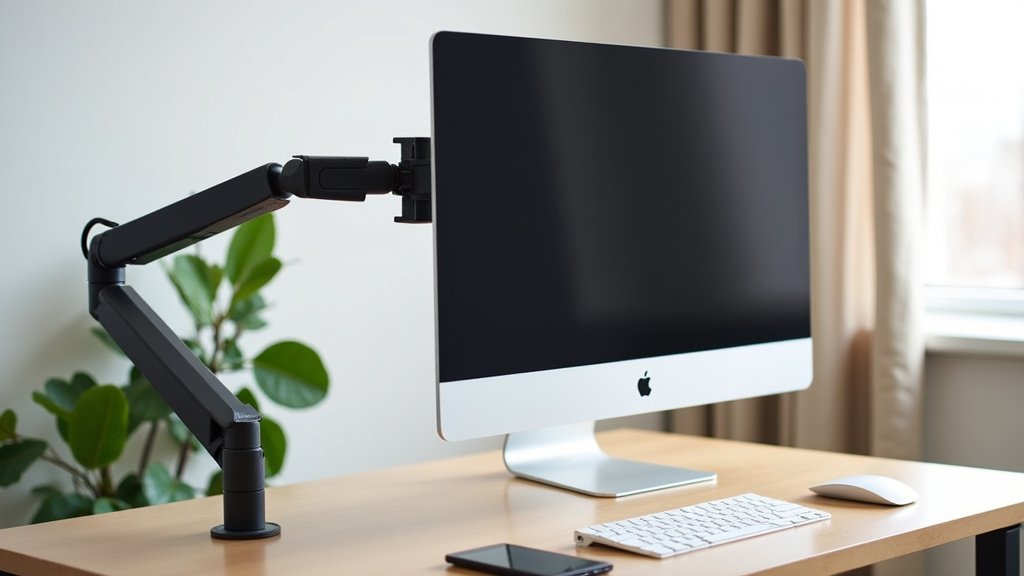
When you use a monitor arm, your screen floats above the desk. The arm clamps to the back or side of your desk. This clears up the entire area underneath your monitor. It’s like magic for a tidy workspace.
We found that this extra space can make a big difference. You’ll feel less cramped. Your desk will look cleaner. This can even help reduce stress during your workday.
Ergonomics and Your Well-being: A Healthier You
This is where monitor arms truly shine. They help you achieve a healthier posture. Many people suffer from discomfort simply because their monitor isn’t in the right place.
Say Goodbye to Neck and Back Pain
Are you constantly craning your neck forward? Do your shoulders feel tight by midday? This is a common problem with fixed monitor stands.
Your monitor should be at eye level. The top of your screen should be roughly level with your eyes. This allows you to look straight ahead without tilting your head down.
A monitor arm lets you easily adjust your screen’s height. You can move it up or down until it’s just right for your unique body. This simple adjustment can prevent a lot of neck and upper back strain.
Many experts recommend that your eyes should be 20-40 inches from the screen (American Academy of Ophthalmology). A monitor arm makes it easy to set this distance correctly.
Reducing Eye Strain and Fatigue
Poor monitor placement doesn’t just hurt your neck. It can also cause eye strain. If your screen is too far, you squint. If it’s too close, your eyes work harder.
With an arm, you can adjust the screen’s distance. You can also tilt it to reduce glare from windows or lights. For room lighting, see home office lumens. This helps keep your eyes comfortable throughout the day.
We found that small adjustments make a big difference. You’ll blink more naturally. Your eyes won’t feel as tired. It’s a small change with a big impact on your daily comfort.
The Freedom of Adjustability: Tailor Your View
One of the best features of a monitor arm is its flexibility. It gives you complete control over your screen’s position.
Perfect Positioning for Any Task
Do you sometimes stand while working? Or maybe you shift positions throughout the day? A monitor arm moves with you.
You can raise your screen for standing work. You can lower it for sitting. Need to show something to a colleague sitting next to you? Swivel the screen with ease. This level of adaptability is hard to get with a static stand.
Imagine giving a presentation at your desk. Instead of awkwardly leaning over, you just rotate your monitor to face your audience. It’s that simple.
Switching Between Landscape and Portrait Mode
Some monitor arms also let you rotate your screen 90 degrees. This means you can switch from a wide landscape view to a tall portrait view.
Why would you do this? Portrait mode is excellent for reading long documents. It’s also great for coding or viewing websites. You see more content without scrolling as much.
If you work with large spreadsheets or design software, having this option is incredibly useful. It opens up new ways to organize your digital workspace.
Types of Monitor Arms: Finding Your Match
Monitor arms come in different styles. Understanding these can help you choose the best one for your needs.
Single vs. Dual Monitor Arms
If you use just one monitor, a single arm is all you need. It’s straightforward and effective.
For those with two monitors, a dual monitor arm is a game-changer. It holds both screens on a single base or clamp. This keeps your two screens perfectly aligned and organized.
Some dual arms let you adjust each monitor independently. This is ideal if your monitors are different sizes. Or if you like one screen closer than the other.
Mounting Options: Clamp vs. Grommet
Most monitor arms attach to your desk in one of two ways:
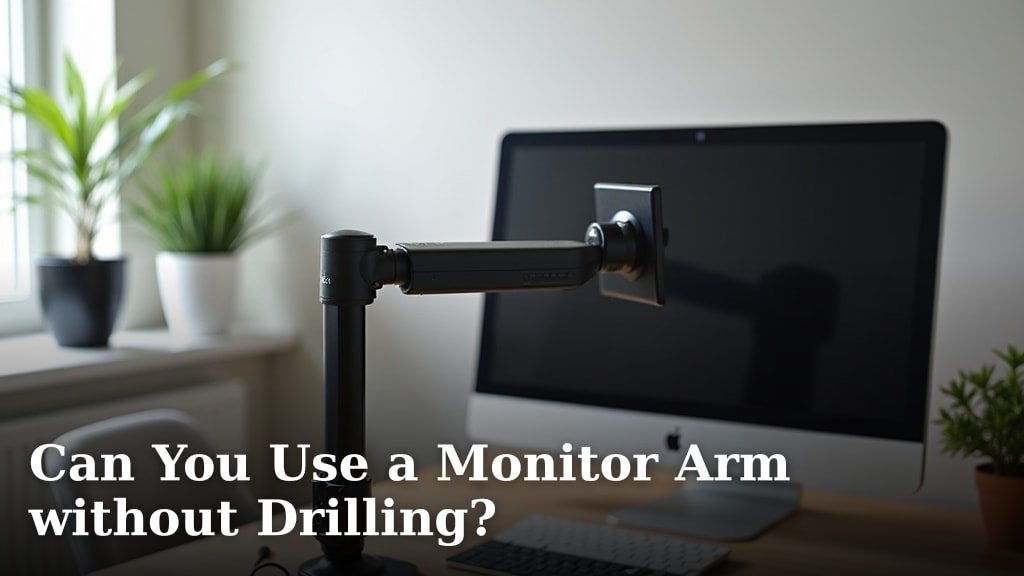
- Desk Clamp: This is the most common. It clamps to the edge of your desk. It’s easy to install and doesn’t require drilling. This works well for most desks.
- Grommet Mount: This option uses a hole in your desk. Sometimes desks come with a pre-drilled grommet hole for cables. If not, you might need to drill one yourself. This provides a very sturdy, clean look. Our guide on the best glass desk for back and neck pain also addresses using a monitor arm with a glass desk.
We found that desk clamps are usually sufficient for home offices. They are secure and leave your desk intact.
Installation: Easier Than You Think
Don’t worry, you don’t need to be a handyman to install a monitor arm. Most are designed for simple DIY setup.
Typically, you’ll attach the arm to your desk first. Then, you’ll attach your monitor to the VESA plate on the arm. VESA is a standard mounting pattern on the back of most monitors.
The arms usually come with clear instructions. Many brands also have helpful video tutorials online. You can often complete the installation in 15-30 minutes.
Considerations Before You Buy: A Quick Checklist
Before you commit, here are a few things to check. This home office monitor arm guide can help you choose a setup. This will ensure you pick the right monitor arm for your setup.
- Monitor Size and Weight: Does the arm support your monitor’s size and weight? Check the product specifications carefully.
- VESA Compatibility: Does your monitor have VESA mounting holes? Most modern monitors do (usually 75x75mm or 100x100mm).
- Desk Thickness: Is your desk thick enough for a clamp mount? Or does it have a grommet hole?
- Adjustability Needs: Do you need height, tilt, swivel, and rotation? Or just height adjustment?
- Cable Management: Does the arm have built-in cable management? This keeps your wires tidy.
Comparing Monitor Arm Features
To help you see the differences, here’s a quick comparison of some common features.
| Feature | Benefit | Consideration |
|---|---|---|
| Gas Spring Arm | Smooth, effortless adjustments. | Often costs a bit more. |
| Mechanical Arm | Reliable and sturdy. | Adjustments might need more effort. |
| USB Passthrough Ports | Easy access for charging devices. | Requires an extra cable to your computer. |
| Quick Release VESA Plate | Simple to attach/detach monitor. | Not essential, but a nice convenience. |
We found that gas spring arms are usually worth the investment. They make adjusting your screen a joy, not a chore.
The Long-Term Benefits: An Investment in Your Health
Think of a monitor arm as an investment. It’s an investment in your comfort, your health, and your productivity.
Avoiding chronic neck pain or eye strain can save you discomfort. It can also save you money on chiropractor visits or eye drops. Plus, a comfortable workspace often means you’re more focused and efficient.
Many people delay upgrading their office setup. But a monitor arm is one of those small changes that yields significant long-term rewards.
Conclusion
You’ve seen how a monitor arm can dramatically improve your home office. We found it’s not just about getting your screen off the desk. It’s about achieving a healthier posture and reducing strain. You gain valuable desk space and enjoy effortless adjustability. This leads to a more comfortable and productive workday.
Investing in a monitor arm is a small change with big rewards for your well-being. Consider your specific needs and desk setup. Then, choose an arm that fits your monitor and workflow. Your body will thank you for it.
Frequently Asked Questions
Are all monitor arms compatible with my monitor?
Not all monitor arms are universally compatible. You need to check for VESA compliance, which is a standard mounting pattern on the back of most monitors. Also, ensure the arm supports your monitor’s size and weight. These details are usually in the product specifications.
Can a monitor arm damage my desk?
Most desk clamp monitor arms are designed to be safe for your desk. They often include padding to protect the surface. However, always check your desk’s thickness and material. For very thin or delicate desks, a grommet mount or a reinforcement plate might be a better option.
Is it difficult to install a monitor arm by myself?
Most monitor arms are surprisingly easy to install. They typically come with clear instructions and all the necessary tools. Many people can complete the setup in under 30 minutes. Online video tutorials are also readily available if you need extra guidance.
What’s the main difference between a gas spring and a mechanical monitor arm?
The main difference lies in adjustment ease. Gas spring arms use a gas cylinder for fluid, effortless height adjustments. Mechanical arms use friction or spring tension, which can require more manual effort to move. Gas spring arms often offer a smoother, more premium experience.
Do monitor arms work with standing desks?
Yes, monitor arms are excellent for standing desks. They allow you to easily adjust your screen’s height to eye level whether you’re sitting or standing. This flexibility helps maintain proper ergonomics throughout your workday, regardless of your desk’s position.