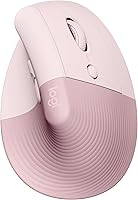
How to Use a Logitech Lift Mouse
To use a Logitech Lift mouse, connect it to your computer, place your hand around its vertical shape, and adjust pointer speed and buttons to suit your work. Make one change at a time, then use the mouse for everyday tasks until the controls feel familiar.
On this page (8 sections)
- How do you connect a Logitech Lift mouse?
- How should you hold the Logitech Lift?
- How do you adjust pointer speed?
- How do you set up the Lift buttons?
- How do you scroll with the Logitech Lift?
- How do you get used to the Lift for everyday work?
- Which other vertical mice can you compare with the Lift?
- What should you change first on a Logitech Lift?
To use a Logitech Lift mouse, connect it to your computer, rest your hand around its upright shape, and set the pointer speed and buttons for your daily tasks. Start with the default controls, then adjust one setting at a time so you can tell what feels comfortable and useful.
The Lift is a vertical mouse, so it may feel different from a flat mouse at first. Give yourself time to learn its grip and pointer movement before deciding whether the shape suits your desk routine.
How do you connect a Logitech Lift mouse?
Connect the Lift using a connection method supported by your model and computer. Follow the setup instructions that came with the mouse, then check your computer’s Bluetooth or USB settings if you need to pair or select a receiver.
Keep the mouse near the computer during setup. If it doesn’t respond, check that it is switched on and has power, then repeat the connection steps in the Lift’s instructions.
Once the pointer moves, open a document or a simple webpage and check that you can move, click, and scroll. This confirms the basic controls work before you start changing settings.
For more context on connection types and choosing a mouse for your setup, see our desktop keyboard and mouse guide.
How should you hold the Logitech Lift?
Rest your hand around the mouse in a relaxed, upright position. Let your fingers reach the buttons without stretching, and keep your wrist in line with your forearm as you move the mouse.
For a reliable tracking surface, see mouse pad alternatives.
A vertical mouse can take a little practice because your hand and fingers meet it at a different angle than a flat mouse. Use small movements at first, and keep the mouse close enough that you don't need to reach across the desk.
Try it during ordinary tasks, such as opening tabs or moving through a document. If the grip feels awkward, adjust the mouse position and how you rest your hand before changing several pointer settings at once.
Compare its upright grip with other options in our guide to the best vertical mouse ergonomic designs. If you're deciding whether a different kind of pointing device may suit you, read trackball vs mouse for ergonomics.
How do you adjust pointer speed?
Set pointer speed so the cursor crosses your screen with a comfortable hand movement. Start with the default speed, then adjust it through your computer’s mouse settings or the Logitech software available for your setup.
If the pointer feels too slow, raise the speed a little and try the same movement again. If it overshoots buttons or text, lower it and repeat the task.
Change one setting at a time. That makes it easier to notice whether pointer speed, button placement, or your grip is behind a problem.
What if the pointer feels jumpy or hard to control?
Lower the pointer speed and use smaller movements first. Also check that the mouse is on a stable surface and that the pointer behaves the same way in more than one app.
If movement still seems inconsistent, reconnect the mouse and review its setup instructions. Avoid changing multiple computer settings at once, since that makes it harder to find the cause.
How do you set up the Lift buttons?
Keep the default button actions until you know which tasks you want to change. Then use the Logitech software for your computer, if available, to check which buttons can be customized and choose actions that fit your routine.
A button is useful to customize when you repeat the same action often, such as moving between pages or launching a task. Pick one action, try it for a few days, and change it again if you keep pressing the button by mistake.
Button options can depend on your computer and software version. Check Logitech’s instructions for your Lift model before expecting a particular button or action to be available.
For a closer look at the Lift’s design and available details, read our Logitech Lift mouse review.
How do you scroll with the Logitech Lift?
Use the scroll control for short, steady movement through pages and documents. Scroll in small steps when you need to read closely, and use larger movements when you want to move through a long page.
If scrolling feels too fast or slow, check your computer’s scroll settings and adjust them gradually. Try the same page again after each change.
Use the mouse’s buttons and scroll control in the way that feels easiest for your common tasks. You don't need to customize everything to use the Lift for everyday browsing and work.
How do you get used to the Lift for everyday work?
Use the Lift for familiar tasks first, then add new shortcuts as they become useful. Start with browsing, email, and documents before relying on it for work that needs precise pointer movement.
Keep the mouse near your keyboard so you can reach both without stretching. If you switch between a vertical mouse and a flat mouse, expect the grip and movement to feel different at first.
A few practice sessions can help you learn where the buttons sit and how far the pointer moves. If a setting makes routine work harder, return it to its previous value and make a smaller adjustment.
For wireless options in this category, compare the best vertical mouse wireless choices. If gaming is part of your setup, our guide to the best vertical mouse for gaming covers that use case.
Which other vertical mice can you compare with the Lift?
Compare the grip, connection approach, and controls you want before choosing another vertical mouse. These options have different listed features, so check whether each one fits your hand, computer, and preferred setup.
The Evoluent is a wired right-hand mouse shaped for medium to large hands. Its side controls adjust pointer speed, and its finger support helps keep the pinkie from rubbing the desk.
The right-hand Anker mouse uses a 2.4 GHz USB receiver rather than Bluetooth. It has next and previous buttons, and its receiver is stored in the mouse’s bottom.
The right-hand MX Vertical has a cursor speed switch and a textured surface. Logitech describes its shape as a natural handshake position, with the thumb resting on the thumb rest.
What should you change first on a Logitech Lift?
Adjust the pointer speed first, then consider button changes only if they solve a repeated task. A comfortable grip and predictable pointer movement are enough for many everyday uses.
If you want a vertical mouse but prefer to compare several shapes, start with the best vertical mouse ergonomic designs. If you already use the Lift, keep the default controls until you have a clear reason to change them.