Keyboards and Mice: The Complete Buying Guide
A desktop keyboard and mouse should fit your hands, work, and desk space. Choose a keyboard layout and key feel you can use comfortably, then match the mouse shape and movement style to your grip and available room.
On this page (7 sections)
- How do you choose a desktop keyboard?
- What types of ergonomic keyboards are available?
- Which type of computer mouse should you choose?
- How should you choose a keyboard tray?
- Do you need a mouse pad or wrist rest?
- How do you match a keyboard and mouse to your desk?
- How do you choose the right desktop keyboard and mouse?
A desktop keyboard and mouse should fit your hands, work, and desk space. Choose a keyboard layout and key feel you can use comfortably, then match the mouse shape and movement style to your grip and available room.
A keyboard with a number pad can help with frequent data entry, while a compact model leaves more room for mouse movement. For the mouse, consider whether you want a familiar shape, a more upright hand position or cursor control without moving the device.
For a specific upright model, see the Logitech Lift mouse review.
This guide covers keyboard types, mouse designs, connections and desk accessories, with links to each topic in the Comfortro keyboards and mice collection. For printers and other office equipment, see our desktop printers guide.
How do you choose a desktop keyboard?
Choose a desktop keyboard by layout, key feel, size and connection. Those details shape your typing position and how much room remains for a mouse.
A full-size board includes a number pad, which can be useful for spreadsheets and numeric entry. Tenkeyless keyboards remove that pad, while smaller layouts also trim navigation or function keys to save desk space.
Key feel varies by switch or mechanism, key travel and profile. If you type for long periods, compare the layout and feel in person when possible, and make sure the keyboard works with your computer and operating system.
Which desktop keyboard layout fits your work?
A full-size layout suits work that uses number entry or dedicated navigation keys. A compact layout can suit a smaller desk or a setup where you want the mouse closer to the keyboard.
Check where you use arrow keys, function keys, Home, End and Delete. A smaller board may require a function layer for keys that have their own positions on larger boards.
Are low-profile keyboards a good choice?
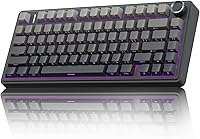
Low-profile keyboards have shorter keycaps and a shallower profile than many standard keyboards. For a fuller comparison, see low-profile keyboards versus standard mechanical models.
They can be a useful option if you prefer a lower typing surface or are used to laptop keys.
Compare the board's height and angle with your current typing posture. For a specific angle, read whether a 7-degree keyboard tilt is good for typing.
See our guide to low profile keyboards for choices and trade-offs.
When should you consider a large-print keyboard?
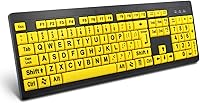
A large-print keyboard uses bigger, easier-to-see legends on the keys. It may suit a reader who wants more visible labels, but check the actual key layout, contrast and size before choosing.
Our guide to large print computer keyboards covers options with more visible key legends.
What types of ergonomic keyboards are available?
Ergonomic keyboards change the key layout, shape or angle to give you more control over hand placement. The right style depends on how much adjustment you want and how much room your desk allows.
Some keyboards use a curved or waved key layout. Others split the keys into separate sections, sometimes with tenting that raises the inner edges.
These designs can feel unfamiliar at first, so allow time to learn the layout.
What is a split keyboard?
A split keyboard separates the left and right key areas. If you use the Logitech Ergo K860, see the K860 key replacement guide.
You can position each side independently, which lets you adjust the spacing to your preference.
Split designs vary. Some are connected by a cable and others are separate wireless halves; some add tenting while others sit flat.
See our guide to two-piece ergonomic keyboards to compare that format.
How do ergonomic keyboards differ from standard keyboards?
Ergonomic models may use a curved key arrangement, a split layout, a different tilt or a built-in palm rest. For one keyboard angle adjustment, see negative keyboard tilt.
Standard models tend to keep a familiar straight row layout and may be simpler to switch to.
A shape change does not guarantee comfort for every person. Compare the keyboard's dimensions and layout with how you sit, place your hands and reach the keys.
For work-focused options, see our ergonomic keyboards for office work. If you want one purchase to cover both input devices, compare ergonomic keyboard and mouse combos.
Which type of computer mouse should you choose?
Choose a mouse by hand position, movement style, grip and desk room. A conventional mouse moves across the desk, while a trackball stays in place and a vertical mouse changes the angle of your hand.
A mouse that fits your hand should let you reach its buttons without stretching. Check whether it is designed for your left or right hand, and consider how much space your mouse pad or desk provides.
What is a vertical mouse?
A vertical mouse places your hand at a more upright angle than a conventional mouse. If you also need side-to-side scrolling, compare vertical mice with horizontal scroll.
The shape and angle vary, so check the design and whether it comes in a size and handedness that fit you.
A vertical mouse still moves across the desk. Explore our vertical mouse options and the guide to vertical mouse versus trackball if you are weighing those two styles.
What is a trackball mouse?
A trackball mouse moves the cursor as you roll a ball, while the mouse body stays in place. Thumb-controlled and finger-controlled versions are available, so consider which fingers you want to use for cursor movement.
A stationary mouse can work in a compact setup where moving a standard mouse is awkward. See our picks for wireless trackball mice.
Which ergonomic mouse might suit your needs?
An ergonomic mouse can change the shape, angle or movement needed to control the cursor. For a vertical design with extended scrolling, compare vertical mice with infinite scroll.
There is no single shape that suits everyone, so compare the options against your hand size, desk space and preferred movement.
- For a familiar wireless shape with an upright grip, consider the Anker 2.4G Wireless Ergonomic Mouse. It uses a USB receiver and is designed for right-handed use.
- For thumb-operated cursor movement in a compact workspace, consider the Nulea M501. It connects to up to 3 devices through Bluetooth or a USB dongle.
- For small to medium right hands that prefer a more upright shape, consider the Logitech Lift. It connects through Bluetooth Low Energy or a Logi Bolt USB receiver.
- For a thumb trackball with Bluetooth or USB receiver connection, consider the Logitech Ergo M575S. Its body stays in place as you move the cursor with the ball.
If you're comparing shapes for a particular concern, start with ergonomic mice, mice for arm pain, or mice for wrist pain. For thumb-operated designs, compare mice for thumb pain.
Should you buy a left-handed mouse?
Choose a left-handed mouse if a right-handed shape makes the buttons or grip awkward to reach. Left-handed designs vary in shape and features, so check the hand orientation before buying.
See our options for wireless left-handed mice.
How should you choose a keyboard tray?
Choose a keyboard tray if your desktop height or limited surface space makes it hard to position the keyboard comfortably. Measure the desk and the space below it before choosing a tray or mounting method.
Check the tray's width and depth against your keyboard and mouse. Also confirm the desk edge and underside have enough room for its clamp or mounting hardware, and that the tray will not block your knees or chair.
A tray needs enough adjustment to put the keys within easy reach. For specific setups, compare keyboard trays for gaming, home office keyboard trays and clamp-on keyboard trays.
Do you need a mouse pad or wrist rest?
A mouse pad can give the mouse a consistent surface, but your desk may already work well for its sensor. Choose accessories for a specific need, such as a smoother surface, a soft place to rest your hands between typing or a fit issue.
Some people use a desk mat or another smooth surface instead of a dedicated mouse pad. Review alternatives to mouse pads before substituting a surface, and check that the mouse tracks reliably on it.
A wrist rest should support your hands while resting, without holding your wrists in a bent position as you type. Compare ergonomic mouse pads and cute keyboard wrist rests by their dimensions and how they fit your desk.
How do you match a keyboard and mouse to your desk?
Match the keyboard and mouse to your available surface, reach and computer connections. A wide keyboard can leave little room for a moving mouse, while a trackball can reduce the space needed for cursor movement.
Before choosing, measure the usable desk area, including space for a monitor stand, notebook or other daily items. For help choosing a mount or riser, see the monitor stand guide.
Check cable reach for wired devices, or confirm the wireless connection type and receiver needs for wireless ones.
If you plan to add a tray, measure the keyboard and mouse together. Some trays have room for a mouse beside the keyboard, while others are sized mainly for typing.
What should you check before buying wireless devices?
Confirm whether the keyboard or mouse uses Bluetooth, a USB receiver or both. If your computer has few available USB ports, check whether it supports the device's Bluetooth connection or whether you'll need a hub.
Also confirm operating system compatibility, battery or charging needs, and whether the receiver is included. For multi-device use, check how switching between computers or tablets works.
How can you keep the setup easy to use?
Place the keyboard where your elbows can stay near your sides and the keys remain easy to reach. Keep the mouse close enough that you do not need to stretch to use it.
Adjust one part of the setup at a time, then notice whether the new position feels manageable during ordinary work. If ongoing discomfort affects your daily tasks, consider asking a qualified health professional for guidance.
How do you choose the right desktop keyboard and mouse?
Choose a desktop keyboard by the layout and key feel that suit your work, then choose a mouse by its shape, movement style and fit in your space. Measure your desk and check compatibility before adding a tray or wireless device.
Pick a standard keyboard if familiar keys matter most, a split design if you want independent placement, or a compact layout if desk space is tight. For the mouse, compare a conventional shape, a vertical design and a stationary trackball, then explore the Comfortro guides above for each topic.
Frequently asked questions
What should I look for in a desktop keyboard?
Choose a layout that fits your work, a key feel you can type on comfortably, and a size that leaves room for your mouse. If you type for long stretches, compare standard, low-profile, split and other ergonomic layouts.
Check connection type, operating system support and desk fit before you buy.
Are split keyboards better for typing?
A split keyboard separates the key areas so you can place each half to match your shoulder width and hand position. It can take time to adjust, and models differ in tenting, layout and connection.
Compare the setup you can sustain with your current keyboard before switching.
What is the difference between a vertical mouse and a trackball?
A vertical mouse changes the angle of your hand while you move the whole mouse across the desk. A trackball keeps the body in one place and moves the cursor with a ball, often controlled by your thumb.
Choose based on the motion you prefer and the room you have.
Do I need a keyboard tray?
A keyboard tray can help position your keyboard lower or closer to you when the desktop is too high or crowded. Measure knee clearance, desk thickness, clamp space and the tray's range before choosing.
A tray only helps if it lets you type with relaxed shoulders and reachable keys.
Can a wrist rest improve keyboard comfort?
A wrist rest can provide a place to rest your hands during pauses, but it should not force your wrists to bend while typing. Check its height against the keyboard and keep your wrists relaxed.
If discomfort persists, adjust your setup and consider getting professional advice.