How to Choose a Trackball Mouse Keyboard Combo
Choose a trackball mouse keyboard combo by matching the keyboard's size and the trackball's position to your desk and hand. A compact keyboard can leave more room for the trackball, while a full-size model keeps the number pad and familiar layout.
On this page (7 sections)
A good trackball mouse keyboard combo starts with the space your hand needs most. The keyboard should fit how you type for hours, and the trackball should sit close enough that you do not stretch or twist to reach it.
Think of the desk as two linked zones. One zone is for typing, with the keyboard centred in front of your body.
The other zone is for pointing, and it should be close to your preferred hand without crowding the keys.
A full-size keyboard keeps a number pad and familiar key spacing. That can suit data entry, spreadsheets and anyone who learned to type on a standard layout and does not want to relearn shortcuts.
A smaller keyboard gives the trackball more room beside it. That can matter on a narrow desk, in a shared workspace, or when the trackball sits beside your dominant hand and needs a clear landing area.
The trade-off is simple. More keys and a palm rest usually mean a wider footprint.
Fewer keys can leave more breathing room, but you may miss the number pad or navigation cluster during everyday tasks.
Start by choosing the trackball position, then select a keyboard size and layout that leaves a clear control zone. Measure the full width of each option before you decide, including any wrist rest or stand.
Also consider how you move between typing and pointing. If you switch often, a short gap between the home row and the trackball can make the day feel smoother and less tiring.
Keep your shoulders relaxed while you test the idea. Your hands should move with small, easy motions, not by reaching across the desk or hovering over the edge of the keyboard.
For a broader look at layouts, connections and key types, read our desktop keyboard guide. It gives useful context before you compare a keyboard with a separate pointing device.
That background helps you judge whether a compact layout, a full-size layout or a split design will work best beside a trackball. It also helps you spot the features you actually use, rather than paying for keys you rarely touch.
How should you place a trackball beside a keyboard?
Place the trackball on the side of the keyboard that matches your preferred hand, with enough room to rest your arm naturally. The goal is a short reach between typing and pointing, not a setup that forces your wrist against the keyboard edge.
Measure the keyboard's full width, including its wrist rest, then mark the remaining desk space. Leave a clear area for the trackball and enough room to move your hand onto it without hitting a monitor stand, lamp or desk edge.
A right-handed user will usually place the trackball to the right of the keyboard. Left-handed users may need the opposite arrangement or a keyboard and pointing device that can be separated more easily.
Keep the keyboard centred with your body when possible. Moving the keyboard too far aside just to make room for the trackball can twist your shoulders during long typing sessions.
That centre position matters more than it first appears. When the keyboard sits straight ahead, your wrists can stay closer to neutral and your elbows can remain near your sides.
If the trackball sits beside the keyboard, test the reach with your forearm resting in the position you normally use. Your hand should drop onto the trackball without lifting your shoulder or leaning sideways.
Also leave a small gap between the keyboard and the trackball. Too tight a fit can make your hand brush the keys while pointing, which can cause accidental input or an awkward wrist angle.
Check the desk edge as well. A trackball placed too close to the edge may leave your forearm unsupported, while a trackball pushed too far back can force a longer reach.
The Trackball vs Mouse: Which is Best for Ergonomics? guide explains the main movement difference and helps you decide whether a trackball fits your work style.
Use that comparison before you commit to a side placement. A trackball suits people who want to point with finger or thumb movement, while a mouse suits people who prefer moving the whole device across the surface.
What keyboard size should you choose?
Choose a full-size keyboard if you use a number pad often, while a smaller layout makes more sense when desk width and trackball placement matter most. There is no single best size for every combo.
A full-size layout keeps number entry, navigation keys and familiar spacing in one place. Its trade-off is width, so the trackball may sit farther from the home row.
That extra distance matters in real use. Even a few extra centimetres can change how often you stretch when you move quickly between typing and pointing.
A compact keyboard can create a shorter gap between the typing area and the trackball. Check that it still has the keys you use for work, spreadsheets, shortcuts or editing before giving up a number pad.
For some people, losing a dedicated number pad is minor. For others, it slows accounts, finance tasks or frequent numeric entry in a way that becomes frustrating quickly.
Key spacing also matters when you type without looking. A familiar full-size layout can reduce errors, while a tighter compact layout may take a short adjustment period.
A split keyboard changes the decision again. Its two halves can leave a central or side position for the trackball, but the layout may take practice.
A centred trackball can suit people who switch hands or want the pointing device directly in front of them. It can also crowd the space where your body sits if the desk is shallow.
Palm rests add comfort for some users and width for everyone. Include the rest in your measurements, since it often extends the keyboard footprint more than the keys alone.
Media keys can save time for volume and playback control, but they may push the main keys into a less familiar arrangement on some models.
Think about desk depth as well as width. A wide keyboard with a deep wrist rest can push the trackball toward the back edge, where your arm may have less support.
If you have typed on a standard layout for years, a sudden change can affect speed and accuracy for longer than expected.
Compare options in our best split keyboard and mouse guide. A split design can improve hand positioning, but it may not leave the same room for a trackball on a small desk.
The safest approach is to list the keys you use daily, then measure the keyboards that keep them. That keeps the choice practical and tied to your actual work.
Which connection should a combo use?
Choose a connection that matches your computer and your desk routine. USB wireless sets can keep the keyboard and pointing device connected through a receiver, while rechargeable designs reduce the need to replace disposable batteries.
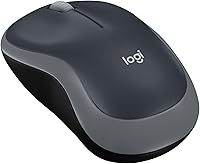
The Logitech MK345 uses 2.4 GHz wireless connectivity, a single included USB-A Nano Receiver, a full-size 104-key QWERTY keyboard and a compact right-handed mouse. The keyboard has an integrated palm rest, spill-resistant design and media keys, while the mouse has a contoured shape.
The ULSOU combo uses one 2.4 GHz USB receiver for its wave keyboard and wireless optical mouse. Its keyboard has a wrist rest and adjustable stand, while the right-handed mouse has forward and back functions and 3-level DPI adjustment.
The SABLUTE combo uses a 2.4 GHz USB receiver and includes USB-A and USB-C connection support. Its keyboard has a rechargeable 4000mAh battery, backlighting, wave keys, a faux lambskin palm rest and 9 shortcut keys.
The mouse has a 700mAh battery, 6 buttons and 3 DPI levels from 800 to 1600.
Check your computer's available ports before choosing a receiver-based setup. If a receiver will sit behind a desktop tower or under a monitor, plan its position before finalizing the keyboard and trackball arrangement.
How do you match the setup to your hand?
Match the pointing device to the hand that does most of your cursor work, then keep the keyboard straight in front of you. A right-handed mouse or trackball can be a poor fit if you need left-handed access throughout the day.
The keyboard and trackball do not need to be sold as one physical set to work together. What matters is the available desk space, the connection method and whether both devices suit the hand that will use them.
If you need a left-side setup, our left-handed mouse and keyboard combo guide covers placement and layout choices. It is especially useful when a standard right-handed mouse position would make your reach awkward.
Your wrist rest should support the heel of your hand without lifting your fingers high above the keys. Adjustable keyboard stands can change the angle, but a higher front edge is not automatically better.
Keep the keyboard angle modest and adjust it to your neutral wrist position.
For another pointing-device option, compare an ergonomic keyboard and vertical mouse combo. A vertical mouse and a trackball solve different movement problems, so choose based on the motion you want to reduce.
What should you check before buying?
Check these details before you commit to a keyboard and trackball mouse combo:
- Desk width: Measure the keyboard, wrist rest and trackball area together.
- Keyboard layout: Confirm whether you need a number pad, media keys, navigation keys or a compact layout.
- Hand orientation: Check whether the pointing device suits your right or left hand.
- Receiver space: Count open USB ports and decide where the receiver will sit.
- Power method: Compare replaceable batteries with rechargeable designs.
- Keyboard angle: Look for a stand or wrist rest only if it supports your natural hand position.
- Trackball clearance: Leave enough room to place your hand without touching the keyboard or desk edge.
- Chair and desk height: Set your work surface so your elbows can stay near your sides.
Desk width should be measured as a complete work area, not as separate pieces. Add the keyboard, any rest or stand, the trackball and a small work margin, then compare the total with the usable surface.
Keyboard layout deserves a close look before you buy. A number pad, media keys and navigation keys can save time, while a compact layout can save space but may change your typing habits.
Hand orientation is easy to overlook when a set looks appealing. A right-handed pointing device may be awkward for left-handed use, even if the keyboard itself is neutral.
Receiver space matters for wireless sets that share a USB receiver. Count open ports and think about whether the receiver will sit behind a tower, under a monitor or in a crowded hub.
Power method affects your daily routine. Replaceable batteries can be simple to swap, while rechargeable designs need regular charging but reduce the need to keep spares nearby.
Keyboard angle should support a neutral wrist position. A higher front edge or a large rest is not automatically better, so judge it by how your hands feel after a normal typing session.
Trackball clearance should include your hand, not just the device. Leave enough room to place your hand naturally without touching the keyboard, a desk edge or nearby objects.
Chair and desk height complete the picture. Your elbows should stay near your sides, and your shoulders should not rise to reach the keyboard or trackball.
The right office chair height guide can help you correct the seating part of the setup. A well-placed trackball cannot compensate for a desk or chair that leaves your shoulders raised.
Take those measurements before you order, and keep a simple note of the results. That short check can prevent a setup that looks fine in a photo but feels cramped in daily use.
How can you arrange the desk for daily use?
Arrange the keyboard first, then place the trackball where your hand can reach it without pulling your shoulder forward. Keep frequently used items outside the keyboard and trackball zone so the main controls stay clear.
If the keyboard has a wrist rest, include its depth when you measure the work area. A keyboard may fit by width but still push the trackball too close to the desk edge.
Use the trackball for pointer work and keep the keyboard centred for typing. Avoid placing the pointing device behind the keyboard, where your hand must reach over the keys.
Clean the keyboard and trackball according to their care instructions. Keep drinks away from wireless receivers and charge rechargeable devices before they interrupt a work session.
Start with the keyboard in the centre of your body. That placement keeps your wrists closer to neutral and makes the typing zone easier to use for long stretches.
Then add the trackball beside the hand you use most. Test the reach by moving from the home row to the trackball a few times, as if you were editing a document or browsing.
Keep pens, cups, phones and paperwork outside that main zone. Even small items can narrow the space and force your hand into a tighter or less comfortable position.
A clear zone also makes the desk easier to clean. Dust and crumbs can gather around keys and around a trackball, so regular wiping helps both devices feel smooth and responsive.
Pay attention to cables and receivers as part of the layout. A receiver placed behind a monitor or tower may be harder to reach, while a cable can snag when you move the keyboard.
For wireless use, check the distance from the receiver to the devices. Keeping the line of sight reasonably clear can help the connection feel steady during daily work.
Set the keyboard angle after the position is fixed. Small changes in height can affect wrist comfort, so adjust the stand or feet gently and test the result over a short typing session.
Keep breaks in the routine as well. Even a well arranged desk can become uncomfortable if you sit in one position for too long without moving your hands, shoulders or legs.
Which trackball mouse keyboard combo should you choose?
Choose the Logitech MK345 if you want a full-size 104-key keyboard, integrated palm rest, media keys and a compact right-handed mouse. Choose the ULSOU if a wave keyboard, wrist rest and adjustable stand are more useful for your desk position.
Choose the SABLUTE if you want a rechargeable 4000mAh keyboard with backlighting, wave keys, USB-A and USB-C support and a faux lambskin palm rest. The right choice depends on keyboard size, hand orientation and space left for your trackball.
The Logitech MK345 suits buyers who want a familiar layout and a long battery routine. Its 2.4 GHz connection uses a single USB-A Nano Receiver, which can keep the setup tidy on a desktop with a free port.
The ULSOU suits buyers who want a wave shape and a wrist rest for longer typing sessions. Its adjustable stand can change the keyboard height, while the shared 2.4 GHz receiver keeps both devices linked through one port.
The SABLUTE suits buyers who want backlighting and rechargeable power. Its keyboard battery and mouse battery remove the need for disposable batteries, but the setup still needs charging at regular intervals.
Each option has a fair trade-off. A full-size layout brings familiar keys and more width.
A wave layout can support a more natural hand position but may change how the keys feel under your fingers.
A palm rest can help your hands settle during typing, yet it also extends the footprint. Measure the full depth before you assume there will be room for a trackball beside it.
Hand orientation should be the deciding factor for the pointing device. A right-handed mouse or trackball will not suit everyone, so check the shape and side placement before you buy.
For the simplest decision, measure your desk and mark the keyboard and trackball positions before you buy. A comfortable distance between the two devices matters more than choosing the most feature-heavy combo.
Use tape or paper to mark the full width and depth on your desk. That small test shows whether the setup will feel open or crowded once your hands are in place.
If the marked area looks tight, a smaller keyboard or a different trackball position may work better. If space is generous, a full-size layout can offer the key access you prefer without crowding your hand.
Frequently asked questions
What keyboard size works best with a trackball mouse?
A compact keyboard leaves more desk room beside a trackball, while a full-size keyboard keeps the number pad and familiar 104-key layout. Choose based on your typing needs first, then measure the remaining space for the trackball, especially if you use a wide wrist rest.
Should a trackball mouse go beside or in front of the keyboard?
Place the trackball beside the keyboard if you want to switch between typing and pointing with small arm movements. A centered trackball can work when desk space is limited, but it may compete with the keyboard for room.
Keep both devices close enough that your shoulders stay relaxed.
Can a wireless keyboard work with a separate trackball?
Yes, a wireless keyboard can work with a separate trackball when the computer supports their connection methods and you have enough USB ports or wireless pairings. Check whether the keyboard uses a USB receiver, Bluetooth or another connection before arranging the devices on your desk.
Is a trackball better than a mouse for ergonomics?
A trackball may suit you if you want to point without moving the whole device across the desk. It does not automatically make a setup ergonomic.
Hand position, wrist angle, keyboard reach, chair height and regular breaks still affect comfort.