How to Set Up an Ergonomic Home Office?
On this page (3 sections)
Setting up an ergonomic home office means arranging your workspace to promote comfort, health, and productivity. The easiest way to get started is by focusing on your chair, desk, and monitor placement first. When comparing products, this ergonomic certification guide explains what labels mean. By making a few key adjustments, you can significantly reduce strain on your body while you work.
An ergonomically sound setup helps prevent common issues like back pain, neck strain, and wrist problems. It ensures you maintain a healthy posture throughout your workday. We found that even small changes can make a big difference in how you feel.
- Adjust your chair for proper back support.
- Position your monitor at eye level.
- Keep your keyboard and mouse close.
- Ensure good lighting to reduce eye strain.
- Take regular breaks to move around.
Let’s walk you through exactly how to set up your ergonomic home office, step by step.
Crafting Your Ideal Ergonomic Workspace
Creating an ergonomic home office doesn’t have to be complicated. It’s about making smart choices for your comfort and well-being. Think of it as tailoring your workspace to fit you perfectly, rather than the other way around. Ready to dive in?
The Foundation: Your Chair and Desk Setup
Your chair and desk are the pillars of your ergonomic setup. Getting these right is key to preventing discomfort. We found that most people focus on these first, and for good reason.
Choosing and Adjusting Your Ergonomic Chair
A good ergonomic chair is your best friend during long workdays. It supports your spine’s natural curve. Look for one with adjustable features.
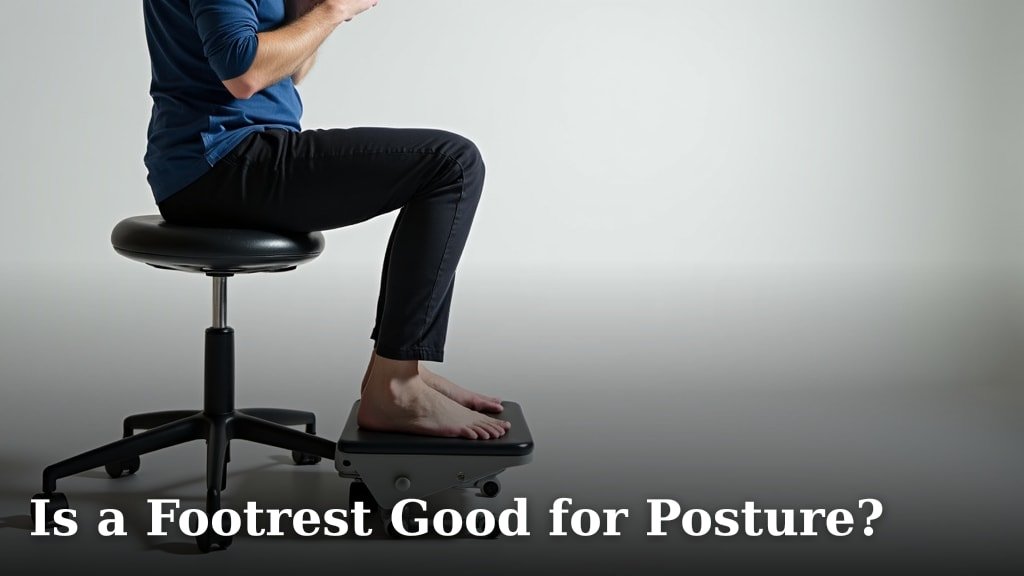
- Height Adjustment: Your feet should be flat on the floor or a footrest. Your knees should be at a 90-degree angle.
- Lumbar Support: The chair back should fit the small of your back. This helps maintain the natural “S” curve of your spine.
- Armrests: Adjust them so your arms can rest comfortably. Your shoulders should be relaxed, not hunched.
- Seat Depth: There should be a 2-4 inch gap between the front of your seat and the back of your knees.
Many experts say adjusting your chair to your body is the single most impactful ergonomic change you can make (Mayo Clinic).
Positioning Your Desk for Optimal Comfort
Once your chair is set, your desk needs to complement it. The goal is to keep everything within easy reach. This prevents overstretching and strain.
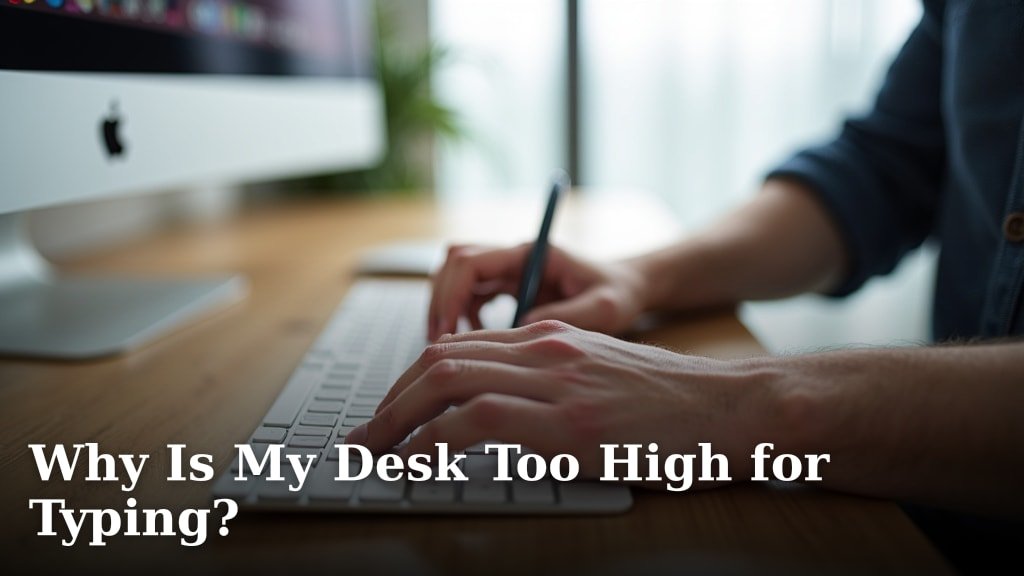
- Height: Your desk height should allow your arms to form a 90-100 degree angle at the elbow when typing.
- Clutter-Free Zone: Keep your essential items close. This includes your keyboard, mouse, and any frequently used documents.
- Legroom: Ensure you have plenty of space to move your legs. Avoid storage units directly under your desk.
A simple check: Sit down, relax your shoulders, and see if your hands naturally fall onto your keyboard. If not, adjust your desk or chair height.
Your Monitor and Input Devices: The Digital Connection
How you interact with your computer makes a huge difference. Incorrect placement of your monitor, keyboard, and mouse can invite neck, shoulder, and wrist pain.
Monitor Placement for Eye and Neck Health
Your monitor positioning is critical for avoiding neck strain and eye fatigue. It’s like having a perfect view without having to crane your neck.
- Eye Level: The top of your screen should be at or slightly below eye level. You shouldn’t have to look up or down much.
- Arm’s Length: Position the screen about an arm’s length away from you. This helps reduce eye strain.
- Centering: Place your main monitor directly in front of you. If you use two, center them or place your primary one directly ahead.
- Glare Reduction: Position your monitor to avoid glare from windows or bright lights. Adjust your blinds if needed.
We’ve seen that even a slight tilt of the monitor can make your workday much more comfortable.
Keyboard and Mouse: Keeping Your Wrists Happy
Your hands do a lot of work. Giving them the right support is a small change with big benefits. This is about preventing common issues like carpal tunnel syndrome.
- Keyboard Position: Place your keyboard directly in front of you. Your wrists should be straight, not bent up or down.
- Mouse Placement: Keep your mouse close to your keyboard. Use your whole arm to move the mouse, not just your wrist.
- Wrist Rests: While helpful for reminders, don’t rest your wrists on them while typing. They are for breaks, not constant support.
Think of your wrists as a straight line from your elbow to your fingertips. This simple visual guide can help you maintain good posture.
Lighting, Accessories, and Movement: Completing Your Ergonomic Puzzle
Beyond the basics, several other factors contribute to a truly ergonomic home office. These elements round out your setup, making it a place where you can thrive.
Optimizing Your Lighting for Reduced Eye Strain
Good lighting is often overlooked, but it’s vital for eye health. You want to reduce contrast and glare as much as possible.
- Ambient Light: Utilize natural light whenever possible. Position your desk parallel to a window.
- Task Lighting: Use a desk lamp to illuminate your work surface. This reduces shadows and strain.
- Avoid Glare: Ensure your light sources aren’t directly shining on your screen or reflecting into your eyes.
Your eyes work hard all day. Providing them with comfortable lighting is a gift.
Considering Ergonomic Accessories
Sometimes, a few extra tools can really tie your setup together. These aren’t always necessities but can greatly enhance comfort.
| Accessory | Benefit |
|---|---|
| Footrest | Promotes proper lower body posture and circulation if feet don’t reach the floor. |
| Document Holder | Reduces neck movement by holding papers at eye level next to your monitor. |
| Standing Desk Converter | Allows you to alternate between sitting and standing, increasing movement. |
| Ergonomic Mouse | Can reduce wrist strain for users with discomfort, often vertically oriented. |
We found that a footrest is particularly helpful for shorter individuals or those with chairs that don’t go low enough.
The Importance of Regular Movement (No, Really!)
Even the most perfectly ergonomic setup isn’t a substitute for movement. Your body isn’t designed to stay still for hours.
- Take Micro-Breaks: Every 20-30 minutes, shift your body. Look away from your screen for 20 seconds.
- Stretch: Gently stretch your neck, shoulders, wrists, and back.
- Walk Around: Every hour, stand up and walk for a few minutes. Grab a drink, visit another room, or step outside.
- Eye Exercises: Periodically focus on distant objects to relax your eye muscles.
This isn’t just about discomfort. Research shows that regular movement throughout the day boosts energy and focus (CDC).
Your Ergonomic Home Office Checklist
Ready to make sure you’ve covered all your bases? Use this quick checklist to review your setup. It’s like a final exam for your ergonomic prowess!
- Is your chair height adjusted to keep your feet flat and knees at 90 degrees?
- Does your chair provide good lumbar support for your lower back?
- Is the top of your monitor at or just below eye level, about an arm’s length away?
- Are your keyboard and mouse positioned so your wrists stay straight and neutral?
- Is your lighting balanced, reducing glare and providing task illumination?
- Do you regularly take short breaks to move and stretch your body?
Remember, your ergonomic setup is a personal journey. Listen to your body and make adjustments as needed. What works perfectly for one person might need tweaking for another. The goal is your comfort and long-term health.

Conclusion
You now have a clear roadmap to creating an ergonomic home office. We found that investing a little time in your setup makes a significant difference. It’s about building a workspace that supports your long-term health and keeps you productive.
Remember, your body will thank you for these adjustments. You’re reducing strain and preventing future discomfort. Start with one change, like adjusting your chair, and build from there. Listening to your body is key.
Start applying these changes today. You’ll feel more comfortable and focused throughout your workday.
Frequently Asked Questions
How often should I re-evaluate my ergonomic setup?
It’s a good idea to check your setup every few months, or whenever you notice new discomfort. Your body changes, and so might your needs. Small tweaks can make a big difference over time.
Can a standing desk really improve my health?
Yes, often! Alternating between sitting and standing can reduce sedentary time. This helps with circulation, energy levels, and can ease back pain. Use it in conjunction with other ergonomic principles.
What’s the most common ergonomic mistake people make?
Most people neglect their chair adjustability. They often sit incorrectly, leading to poor posture and back pain. Adjusting your chair for proper lumbar support is a frequent oversight.
Do I need expensive ergonomic equipment for a home office?
Not necessarily. While high-end gear can help, many ergonomic improvements are free. Proper monitor placement and regular breaks cost nothing. Focus on good posture and smart adjustments first.
My wrists hurt when I type; what should I do?
First, ensure your wrists are straight, not bent up or down, when typing. Keep your keyboard close. Consider a neutral ergonomic mouse or keyboard if issues persist. Taking frequent micro-breaks also helps.